
Complete guide to choosing and buying Windows Server 2025: Compare versions, key features
July 13, 2025
20 Essential Commands Every User Should Know in Command Prompt for Windows 11
July 18, 2025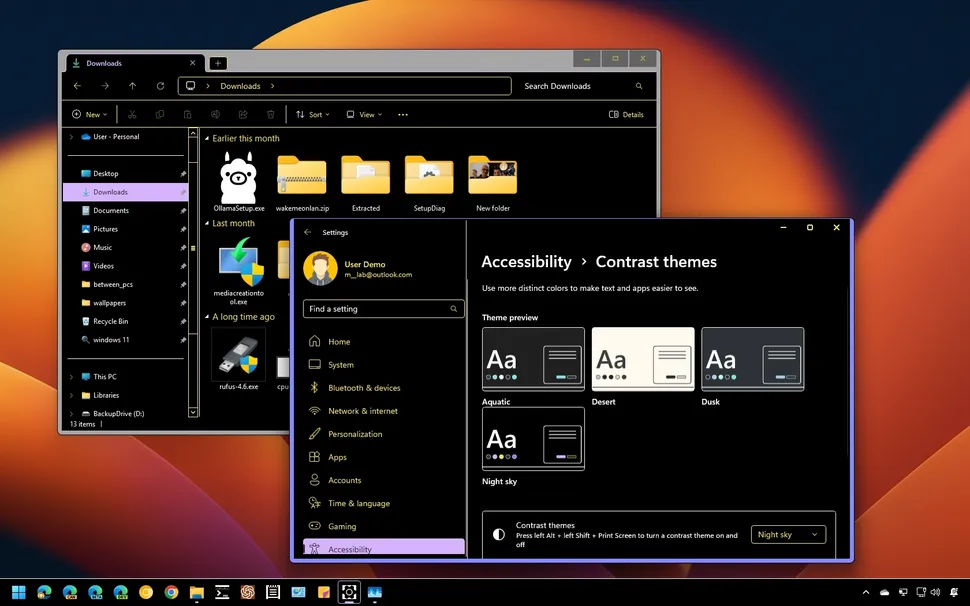
Windows 11 has a high contrast mode that makes the user experience easier for people with vision problems. Here's how to use this feature.
Although the system's default color scheme Windows 11 Suitable for most users, the system also offers four high-contrast themes for people with low vision. However, anyone can benefit from these themes. Enabling these themes changes elements such as text, links, buttons, and backgrounds to high-contrast colors that increase readability both in Windows 11 and on the web. In addition, you can create your own custom theme with colors that meet your specific needs.
In this step-by-step guide, I will explain how to enable and configure high contrast mode on your laptop or desktop computer.
How to enable high contrast mode in Windows 11
How to enable high contrast mode in Windows 11
To switch to one of the Windows 11 contrast themes, follow these steps:
- Open Settings.
- Click Accessibility.
- On the right, click on the Contrast themes page.

Select one of the available themes in the Contrast themes settings:
- Aquatic
- Desert
- Dusk
- Night sky

Click the Apply button.
(Optional) Use the keyboard shortcut Left Alt key + Left Shift key + Print screen to enable or disable the contrast theme.
After completing these steps, your Windows experience will change to high contrast mode. When applying a high contrast theme, it is normal to see a “Please wait” screen for a few seconds as the system applies the changes.
How to create a custom high contrast mode in Windows 11
How to create a custom high contrast mode in Windows 11

Select one of the available themes in the Contrast themes settings – for example, Desert.
Click the Edit button.

Use the Background settings to specify the background for elements that contain text. Windows 11 They show it, use it.
Use Text settings to set the color of text in Windows 11 and web pages.
Use Hyperlink settings to set the text color of links in Windows 11 or web pages.

Use the Inactive text settings to change the color of inactive text throughout the experience.
Use the Selected text settings to choose the text color for selected text.
Use the Button text settings to adjust the color of the buttons and the text inside the buttons.
On the button Save as Click.

Confirm a name for the new custom theme.
Click the Save and apply button.
As you make changes, you'll see a preview of them in the settings. Once you're done, the theme will be applied immediately with all your custom settings.
What is removed in high contrast mode?
What is removed in high contrast mode?
Important points when using themes
Important points when using themes
When using themes, it is very important to pay attention to the harmony of colors and the design of graphic elements. Choosing the right colors can have a big impact on the readability of text and the user's comfort in interacting with the environment. For example, themes that offer high contrast between the background and text can help significantly improve the clarity of content and reduce eye fatigue. On the other hand, considering the specific interests and needs of users, including those with vision problems, can lead to the selection of more efficient themes.
It is also crucial to regularly update themes and check their compatibility with the latest versions of the operating system and applications. This not only helps maintain the aesthetics and functionality of the user interface, but can also prevent technical issues. Ultimately, testing and monitoring different user experiences when using themes can lead to the development of better and more customized solutions that meet the needs of a wider range of users.
In conclusion, enabling high contrast themes in Windows 11 is a simple process that will significantly increase accessibility for users who require visual aids. By following the steps outlined in this guide, individuals can easily customize their visual experience to suit their specific needs. High contrast settings not only improve readability, but also reduce eye strain and make the digital environment more user-friendly. As accessibility remains a priority in technology, using these features ensures that all users can navigate and use their devices more effectively. Using these tools is a vital step towards a more inclusive digital experience for everyone.
High contrast mode in Windows 11 Designed to help people with vision impairments. This mode helps increase the readability and clarity of text and visual elements. By enabling High Contrast mode, the colors in the system are adjusted to create greater differences between text and background. This feature is useful for people with low vision or difficulty distinguishing colors. Windows 11 comes with four preset High Contrast themes, which include black backgrounds with light text and white backgrounds with dark text. In addition, users can choose custom colors for their themes. In this mode, elements such as the desktop background, transparent toolbar, and some background graphics in apps are removed to create a simpler and more accessible user experience. In addition, High Contrast mode can be combined with other accessibility settings such as magnification, keyboard shortcuts, and custom icons. Overall, high contrast helps those with vision problems use the computer more comfortably and have a better experience.