
What is the Windows Insider Program and should you join it?
April 17, 2025
How to move the Start menu to the left or center on the Windows 11 taskbar
April 26, 2025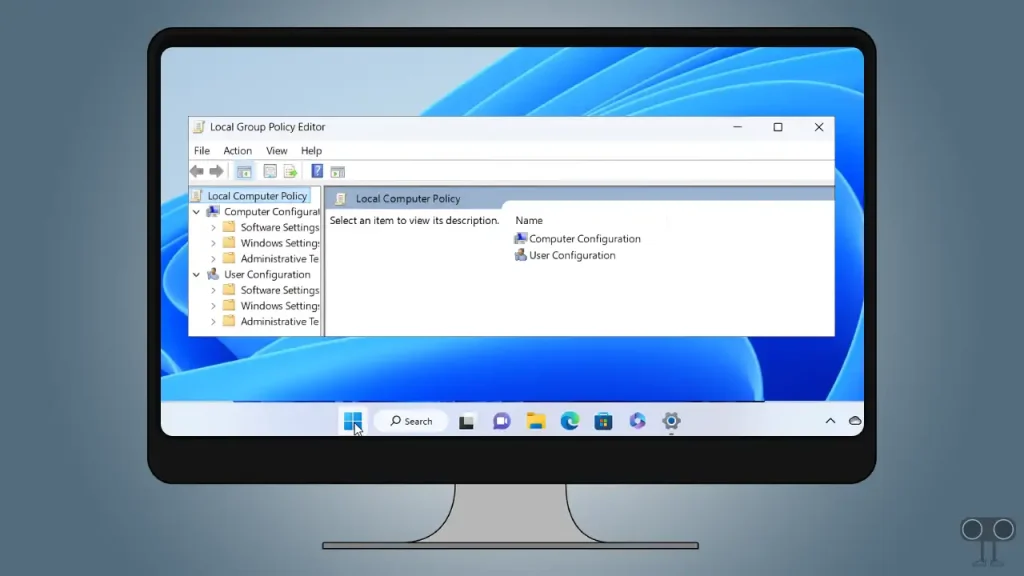
This guide includes detailed instructions showing how to apply local group policy settings to specific users or groups in Windows 11 and Windows 10. This guide covers tips on managing local Group Policy in Windows, as well as troubleshooting and best practices for managing user-specific Group Policy at scale.
Learn how to apply local group policies to specific users to have fine-grained control over what specific users can and cannot do, and to exercise fine-grained control over the programs and features they can use.
Understanding Local Group Policy in Windows
Understanding Local Group Policy in Windows
Group Policy is a feature in Windows that allows for central management of Windows devices, including system and user settings, as well as application configuration. This includes managing security policies, user permissions, network configuration, and how user profiles are managed. Group Policy is only available in Pro and Enterprise editions of Windows — if you're using Windows 11 Home or Windows 10 If you are using Home, you cannot access this feature.
Group Policies consist of Group Policy Objects (GPOs), which are a collection of configuration options that affect how Windows features or programs behave. GPOs are set as either computer configuration (which applies to a specific Windows device and any user logged on to that device) or user configuration (which applies only to a specific user account for as long as they are logged on to the Windows device).
You can configure local group policy for a specific user using Windows Local Group Policies and Group Policy Objects to:
- Automatically connect to network shares and online printers.
- Run scripts when a user logs in or out.
- Configure web browser security settings.
- Make sure your firewall and antivirus are enabled (and cannot be turned off).
- Block access to specific Windows programs or features (for example, disable command line access for specific users).
Windows Group Policy can be set on a local device or as part of a Windows domain for use in organizations:
- Local Group Policy: Local Group Policies apply only to the specific device on which they are set. In case of conflict, local Group Policy objects are overridden by domain Group Policy objects from Active Directory.
- Group Policy in Active Directory: Group Policy Objects can also be defined in a Windows Active Directory domain (for example, in a small business, education, or enterprise scenario). This gives you centralized control over users and computers connected to the network. Group Policies in Active Directory are defined based on the Organizational Unit (OU) of the user or device.
Why do we need to apply Group Policy to specific users?
Why do we need to apply Group Policy to specific users?
Group Policy is typically configured in enterprise environments as part of an Active Directory domain to control Windows devices within a large corporate IT infrastructure. However, it is also useful in small-scale Windows deployments because it allows small businesses and individuals supporting home users to do things like:
- Configure Windows updates and ensure they are installed on time.
- Set default applications, such as a web browser or secure email client.
- Run system settings to prevent disabling important security features such as antivirus and Windows Firewall.
- Prevent unauthorized users from installing programs and running scripts (especially if some users repeatedly open malicious email attachments or download software from suspicious websites).
- Ensuring that specific users can only open specific applications or websites, for example, setting up a user who only has access to a specific application or website for use as a web kiosk or for product demos.
Prerequisites for setting local group policies for specific users
Prerequisites for setting local group policies for specific users
Creating users and groups in Windows 11
Creating users and groups in Windows 11

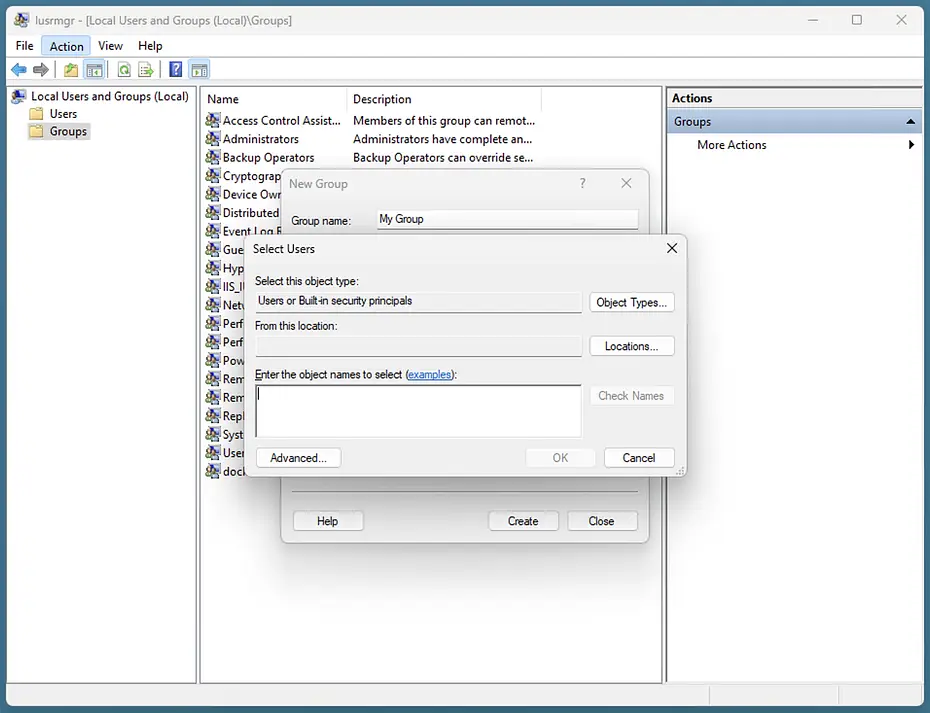
Enter the usernames of the people you want to add to the group, then click OK Click.
After adding users and groups, you can specifically target them with Local Group Policies Set a target. In general, it's better to add users to a group so you can set the settings for all users in that group and then add new users to that group later, rather than applying the settings to each user individually.
Step-by-step guide: Applying Local Group Policy to specific users
Step-by-step guide: Applying Local Group Policy to specific users
To apply Local Group Policies To give specific users in Windows, you need to create a custom Microsoft Management Console (MMC) window that edits Group Policies only for that specific user or group:
- On the button Start Right-click, then Run select
- mmc Enter, click OK Click and in the User Account Control message, click Yes Click to open MMC.
- In the menu bar, click File Click and then Add/Remove Snap-In… select
- From the list of available snap-ins, Group Policy Object Editor select
- On the button Add > Click to add it to the list of selected snap-ins.

On the button Browse In the window Select Group Policy Object Click.
Language Users Select , then select the specific users or groups you want, and finally click OK Click.

- On Finish In the window Select Group Policy Click and then OK In the window Add or Remove Snap-ins Click.
- MMC window now Local Group Policy Editor will display for specific users in the navigation panel.
- On File Click then Save As Select and place this custom MMC view on the desktop called Group Policy Editor for specific users Save (for convenience, include the group name in the MMC name).
- Now you can use this MMC file saved on your desktop whenever you want to manage user policies for that user or group.
Any changes you make in this MMC window will only apply to the specified users or group. For example, you can configure a group policy that restricts access to members of a specific group. Control Panel Block:
- Open the MMC file you created earlier.
- To the path Local Computer/specific users Policy/User Configuration/Administrative Templates/Control Panel Go.
- On the setting Prohibit access to Control Panel and PC settings Double click.

In the Settings window, select the option Enabled Select and then tap OK Click.

To apply the changes, restart the system or run the command gpupdate /force Run from PowerShell or the command line.
These changes can be undone by returning to Settings. Prohibit access to Control Panel and PC settings And choice Disabled Or Not Configured Return.
It is important to test any Group Policy Object (GPO) you create to ensure that it has the desired effects.
Fix common problems in local Group Policy:
Fix common problems in local Group Policy:
To troubleshoot issues when setting up Group Policy for each user, you can check the following:
- Make sure the policies are assigned to the intended user or group.
- Verify that the users for whom you intend to create a policy are members of the group to which the policy is assigned.
For further investigation, the command gpresult /r Run to list all active policies. Note that in case of conflict, the more restrictive policies take effect.
If you made a mistake while creating Local Group Policies or cannot find the source of the problem, you can reset all policies by running the following commands as an administrator:
How to efficiently manage Windows Group Policy at an enterprise scale
How to efficiently manage Windows Group Policy at an enterprise scale
Using Local Group Policy to restrict access to specific users across multiple Windows devices can be time-consuming while trying to keep your configuration secure and consistent. Additionally, there is a risk of making mistakes that may go unnoticed. For more than one Windows device configuration in an organization, it is best to set up an Active Directory domain so that Group Policy and other Windows settings can be managed centrally. This provides greater control and visibility over your IT assets.
Applying local group policies to specific users in Windows 10 and Windows 11 is a powerful tool for managing and controlling access in work and education environments. Using these policies, system administrators can define specific settings for each user or group of users, thus providing a personalized and secure experience. Especially at a time when information security and system efficiency have become more important, mastering these tools can help improve performance and better resource management. We hope this guide has helped you understand and effectively implement group policies in Windows 10 and 11.