
Comparing Windows 10 Education and Pro: Similarities and Differences
May 19, 2024
Cracked Versus Original Windows Review: A Comprehensive Comparison
May 31, 2024
Windows 10 is one of the most popular computer operating systems in the world, developed and released by Microsoft. This operating system has attracted millions of users with many improvements over its previous versions. In addition to basic functions such as quick search and various applications, Windows 10 has interesting and hidden features and tricks that may be unknown to many users. In this article, we are going to introduce some of these features and tricks and show how you can take advantage of them.
Customize the start menu for efficiency
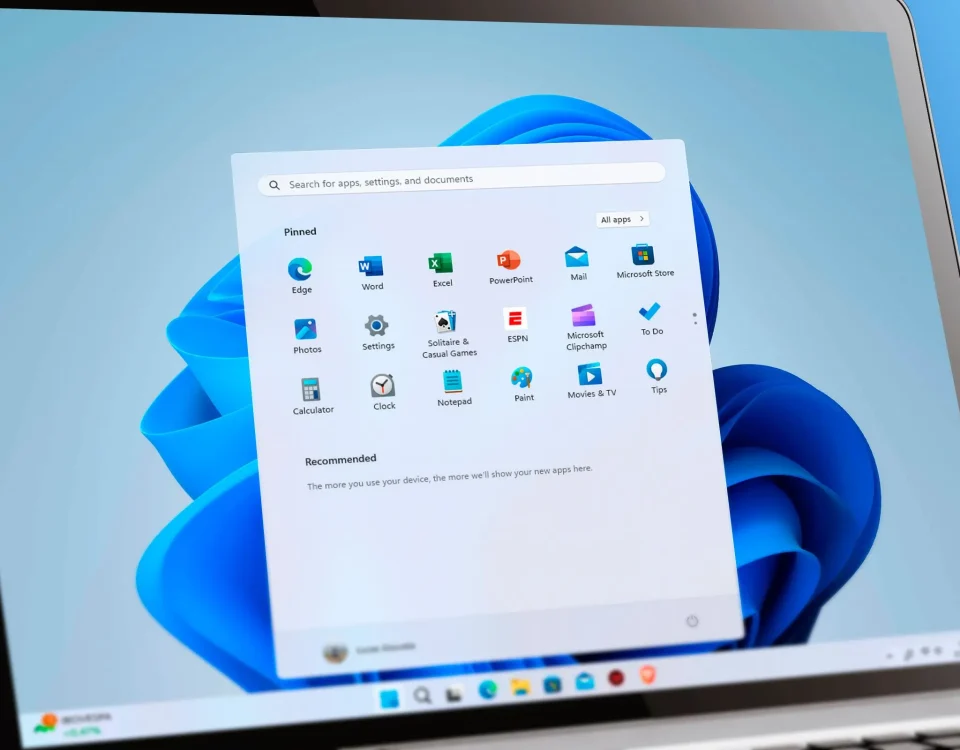
To increase efficiency and personalize your Windows 10 experience, you can customize the Start menu. By customizing the Start menu, you can optimize your workflow and easily access your most-used programs and features. You can resize and arrange tiles, create folders to organize your apps, and pin frequently used apps for quick access. Additionally, you can customize the look of the Start menu by choosing different color schemes, backgrounds, and themes to suit your preferences. This level of customization allows you to tailor your Start menu to fit your workflow and improve your overall productivity as you navigate Windows 10.
Improve multitasking with virtual desktops
By using the virtual desktop feature in Windows 10, you will be able to improve multitasking and take your user experience to the next level and work with other programs and resources simultaneously. Virtually, you can create multiple desktops and configure each one to meet your specific needs. With virtual desktops, you can easily switch between different programs and projects and use each one individually. Using this feature, you can simultaneously work on a virtual desktop and access other tasks on your real desktop.
To create a new desktop, you must press the Windows + Tab keys and finally click on the New Desktop option. With this, you can, for example, create a desktop for company work and a desktop for personal work.
Use Cortana for voice commands
Using Cortana for voice commands is one of the interesting and useful features of Windows 10. By activating Cortana, you can give different commands to your computer using your voice. This feature allows you to perform various tasks without touching the keyboard or mouse and have faster access to the functionality of the Windows operating system. For example, you can use Cortana to open apps, create and edit files, search the Internet, and perform other everyday tasks. In addition, Cortana has more advanced features such as sending messages or making phone calls. By using these features, you can interact with the Windows 10 operating system faster and more easily and achieve more productivity.
Save time with quick actions
Save time with quick and optimized actions in Windows 10. One of the interesting and practical features of this operating system is the Snap feature. With Snap, you can organize your workspace more effectively. Position a window by dragging it to the edge of the screen. Also, drag a window up to make it full screen. This feature helps you to work with more than one program at the same time and achieve more productivity. In addition, take advantage of the Virtual Desktop feature. Using this feature, you can define multiple keyboard shortcuts to switch between application shortcuts of programs and windows. This quick action allows you to move between different workspaces without delay and more quickly.
Organize files with File Explorer
In Windows 10, you can effectively organize your files using File Explorer software. Using this powerful tool, you will be able to easily search and sort files and folders, quickly restore files, and even experience advanced features such as creating bookmarks and filters. Using File Explorer, you can divide your files into different categories and store them in appropriate folders and subfolders. This will make your files more organized and easy to access. Also, you can use features such as renaming files, copying and moving them to manage your files in the best way.
Increase productivity with Task View
By using the Task View feature in Windows 10, you can significantly increase your work productivity. TaskView is a powerful tool that allows you to quickly switch between running programs and windows. By pressing the Windows key and Tab, you can browse your work environment and quickly switch between programs. Also, by using the Snap feature in Task View, you can simply put two or more windows together and work on them at the same time. Using these features, you can get the most out of your open windows and software at the same time and easily switch between them. Using Task View in Windows 10 is one of the best ways to be more productive in your work environment.
Use the Night Light feature for better sleep
Night Light is one of the interesting and useful features of Windows 10 that you can use to improve the quality of your sleep. This feature automatically reduces light blue colors and displays warmer colors instead. Research has shown that the blue radiation emitted by the screen of electronic devices can have a negative effect on the sleep pattern and its quality. By activating Night Light in Windows 10, you can use the warm and soft light of the screen at night, which helps you sleep. By adjusting the sensitivity level, you can easily adjust when the Night Light is activated. Therefore, by using the Night Light feature, you can sleep better and experience a deeper rest.
To activate Night Light, you must follow this path: Setting > System > Display. After activating it, you can go to the settings section of this feature and make more detailed settings for it.
Save battery with Battery Saver
Among the important and practical features of Windows 10, we can mention Battery Saver, which allows you to use your device's battery for a longer period of time. By enabling this feature, settings are applied in Windows that reduce system energy consumption and also limit the performance of some features to manage the battery more optimally. By choosing the Battery Saver mode, the brightness of the screen is reduced and some processes and programs are less active in the background. This feature intelligently saves the battery and is very suitable for using the device for a long time. Using Battery Saver in Windows 10 improves battery life and reduces the need for frequent charging, allowing you to enjoy your device for longer.
Cloud clipboard in Windows 10
Cloud Clipboard is an interesting and useful feature in Windows 10 that allows users to copy and paste text, photos, links and other files between their devices. This so-called "query" feature is active on all devices that are logged in with the same Microsoft account.
To use Cloud Clipboard in Windows 10, follow the steps below:
Go to Windows 10 Settings.
Select the "System" section.
In the left window, go to the "Clipboard" section.
You can now enable the “Sync across devices” option to use this feature.
From now on, content copied to one device will be automatically synced to other devices logged in with the same user account.
By enabling this feature, you can easily use Cloud Clipboard in Windows 10 to copy and paste content between your devices.
Closer connection between your phone and computer