
Cracked Versus Original Windows Review: A Comprehensive Comparison
May 31, 2024
Introduction and features of Windows 11, comparison with Windows 10
June 10, 2024
Windows 11, the latest version of Microsoft's operating system, has entered the world of technology with significant innovations and improvements. This new version is designed with the aim of improving the user experience and increasing productivity, but one of its most prominent strengths is its special focus on gaming. By introducing unique features and capabilities, Windows 11 has been able to introduce itself as the best version of Windows for gamers. In this article, we will take a look at the special gaming features in Windows 11 and the reasons that have made this operating system the first choice of gamers.
Windows 11: The best Windows for gaming
Microsoft has claimed that the latest version of its Windows operating system offers the best gaming experience for PC players. In a new post on the Xbox Wire blog, Xbox VP Sarah Bond stated that Windows 11 will be the best Windows for gaming. Microsoft has mentioned three new features that can improve the gaming experience for gamers: Auto HDR, DirectStorage and Xbox Game Pass.
"We built Windows to be a magic place where everyone can play, connect, and create," Bond wrote. "That's why we're excited to bring you Windows 11 with superior graphics, amazing speed, and an incredible selection of games."
Gaming features in Windows 11
✔️ Auto HDR in Windows 11: Improve the visual experience of games
One of the outstanding features of Windows 11 that takes the gaming experience to a new level is the ability Auto HDR is This feature automatically adds High Dynamic Range (HDR) to games that only support Standard Dynamic Range (SDR). In the following, we will examine this feature and its benefits.
HDR or high dynamic range is a technology that displays more vivid and realistic images by increasing contrast and color accuracy. Previously, only games developed specifically for HDR could take advantage of this feature. But with Windows 11, the Auto HDR feature has been introduced, which eliminates this limitation and allows SDR games to use this technology.
Using advanced algorithms and image processing techniques, Auto HDR analyzes game scenes and improves their dynamic range. This means increased brightness in brighter areas and deeper shadows in darker areas, without the need for any manual adjustments by the user.
Advantages of Auto HDR
- Improved visual experience: With Auto HDR, games are displayed with more vivid colors and more details. This feature is especially effective in games with high graphics and natural scenery.
- Increased immersion: More realistic and dynamic images make gamers more immersed in the game world and feel a more immersive experience.
- No need for new hardware: One of the big advantages of Auto HDR is that you can take advantage of this feature without having to upgrade your hardware or buy new monitors. It is enough that your display supports HDR.
- Improve old games: Auto HDR brings old games back to life too. Games that previously only supported SDR can now be displayed in better quality.
- By enhancing the visual quality of games and improving the overall experience, this feature plays an important role in making Windows 11 the best version of Windows for PC gaming. If you are also looking for a better and more realistic gaming experience, Auto HDR in Windows 11 can surprise you.
✔️ DirectStorage on Windows 11: Amazing speed in loading games
One of the key features of Windows 11 for gamers, DirectStorage is This technology is designed to reduce the loading time of games and improve their overall performance. In the following, we will explain how DirectStorage works and its benefits.
DirectStorage is a technology that came directly from the Xbox Series X|S consoles to the PC world. This feature is designed to take advantage of the high bandwidth of NVMe SSDs to dramatically speed up the loading of game data. With this technology, games can transfer large amounts of data simultaneously and with high efficiency from memory to CPU and GPU.
In traditional systems, game data is transferred from the storage memory (such as HDD or SSD) to the CPU, and then the CPU sends this data to the GPU. This process causes delay and slows down the loading speed. But DirectStorage cuts out part of this process, transferring data directly from the SSD to the GPU, without requiring much processing by the CPU. This will reduce the delay and increase the loading speed.
Advantages of DirectStorage
- Shorter loading time: DirectStorage can significantly reduce the loading time of games. This means faster starting games and faster transitions between different stages of the game.
- Higher quality games: With high data transfer speeds, game developers can use higher quality textures and models that help improve the graphics and details of games.
- Improving overall performance: Reducing the processing load from the CPU and transferring it to the GPU improves the overall performance of the system and games. This can be especially effective in heavy and graphic games.
- Smoother gaming experience: By reducing the delay and increasing the loading speed, the gaming experience will be smoother and uninterrupted. This feature is especially noticeable in open world games with large environments.
By reducing loading times and improving the overall performance of games, this technology plays an important role in making Windows 11 the best option for gamers. If you are looking for a faster and smoother experience from your games, DirectStorage in Windows 11 can surprise you.
✔️ Xbox Game Pass on Windows 11: access to thousands of quality games
Another prominent feature of Windows 11 for gamers is full integration Xbox Game Pass is This subscription service, which was first introduced for Xbox consoles, is now natively supported in Windows 11. In the following, we will examine this service and its benefits.
Xbox Game Pass is a subscription service that allows users to access a wide selection of games. By paying a monthly fee, users can enjoy a variety of high-quality games, including AAA titles and indie games. The service includes new and old games from various publishers as well as Xbox exclusive games.
Benefits of Xbox Game Pass on Windows 11
- Access to thousands of games: Xbox Game Pass users can access a library of hundreds of games that is updated regularly. These games include famous and popular titles, new games and many exclusive Xbox games.
- Day 1 Games: One of the big benefits of Xbox Game Pass is that users can play some new games from the first day of release. This feature is especially great for Xbox exclusive games.
- Cost-effective: Instead of buying each game separately, users can access all the games in the Xbox Game Pass library by paying a monthly fee. This saves money.
- Try out new games: With Xbox Game Pass, users can try out new and different games at no extra cost. This feature is especially attractive for gamers who like to experience a variety of games.
- Integration with Windows 11: On Windows 11, Xbox Game Pass is natively supported and users can easily access their game library through the Xbox app. This integration makes the user experience much simpler and more seamless.
With access to thousands of quality games, affordability, and the ability to play new titles from day one, this subscription service takes the gaming experience to a new level. If you are also looking for a complete and varied gaming experience, Xbox Game Pass on Windows 11 can be the best choice for you.
With a special focus on gaming, Windows 11 offers a set of unique capabilities and features that take the gaming experience to a new level. Outstanding features such as Auto HDR, DirectStorage and Xbox Game Pass It shows Microsoft's commitment to improving the experience of gamers.
- Auto HDR By improving the visual quality of old and new games, it displays more vivid colors and details and provides a more realistic experience.
- DirectStorage By reducing the loading time of games and improving the overall performance of the system, it allows gamers to enjoy the world of games without delay.
- Xbox Game Pass With access to a wide library of diverse and quality games, it reduces gaming costs and provides the opportunity to experience new and popular games.
Together, these features make Windows 11 the best version of Windows for gaming. With superior graphics, amazing speed, and an incredible selection of games, Windows 11 is the perfect choice for any gamer. If you are looking for a better, faster and more diverse experience in the world of games, Windows 11 can meet all your needs.
The best solutions to improve the gaming experience in Windows 11
If you are a professional gamer or even an amateur and want to improve your gaming experience in Windows 11, you can use the following solutions:
✔️ Turn on Gaming Mode:
Windows 11 has a mode called Gaming Mode, by activating it, system resources are optimized to provide the best performance in games. To enable it, go to Settings > Gaming > Game Mode and turn it on.

✔️ Using Auto HDR:
If your monitor supports HDR, enable Auto HDR in Windows 11 to improve the visual quality of games. To do this, go to Settings > System > Display > HDR and enable Auto HDR.

✔️ Make sure your games use basic computer graphics:
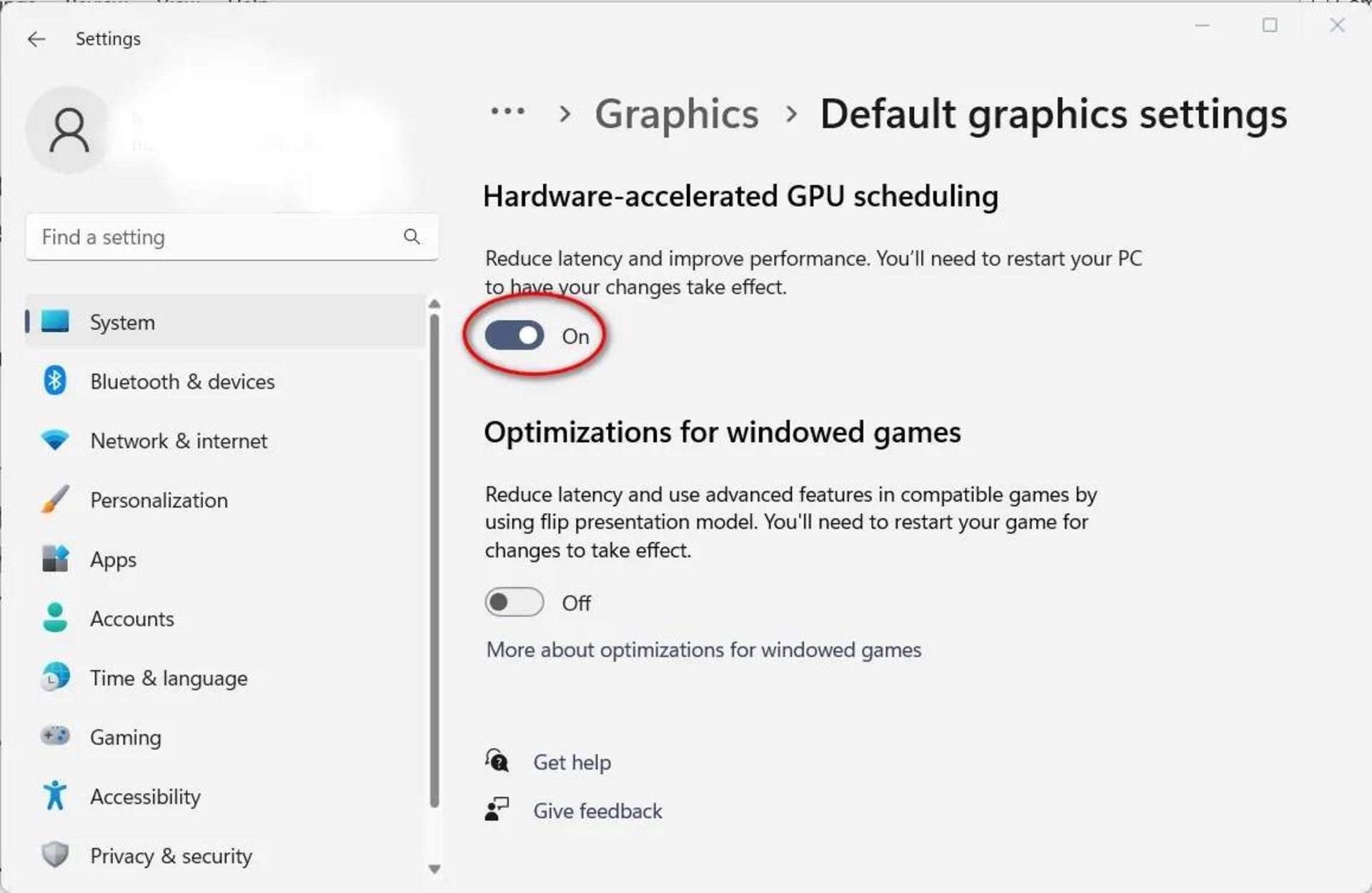
If your system has two graphics cards (internal and discrete), make sure that the games use the more powerful graphics card. To do this, go to Settings > System > Display > Graphics and assign your games to the main graphics card.
✔️ Disable mouse cursor accuracy:
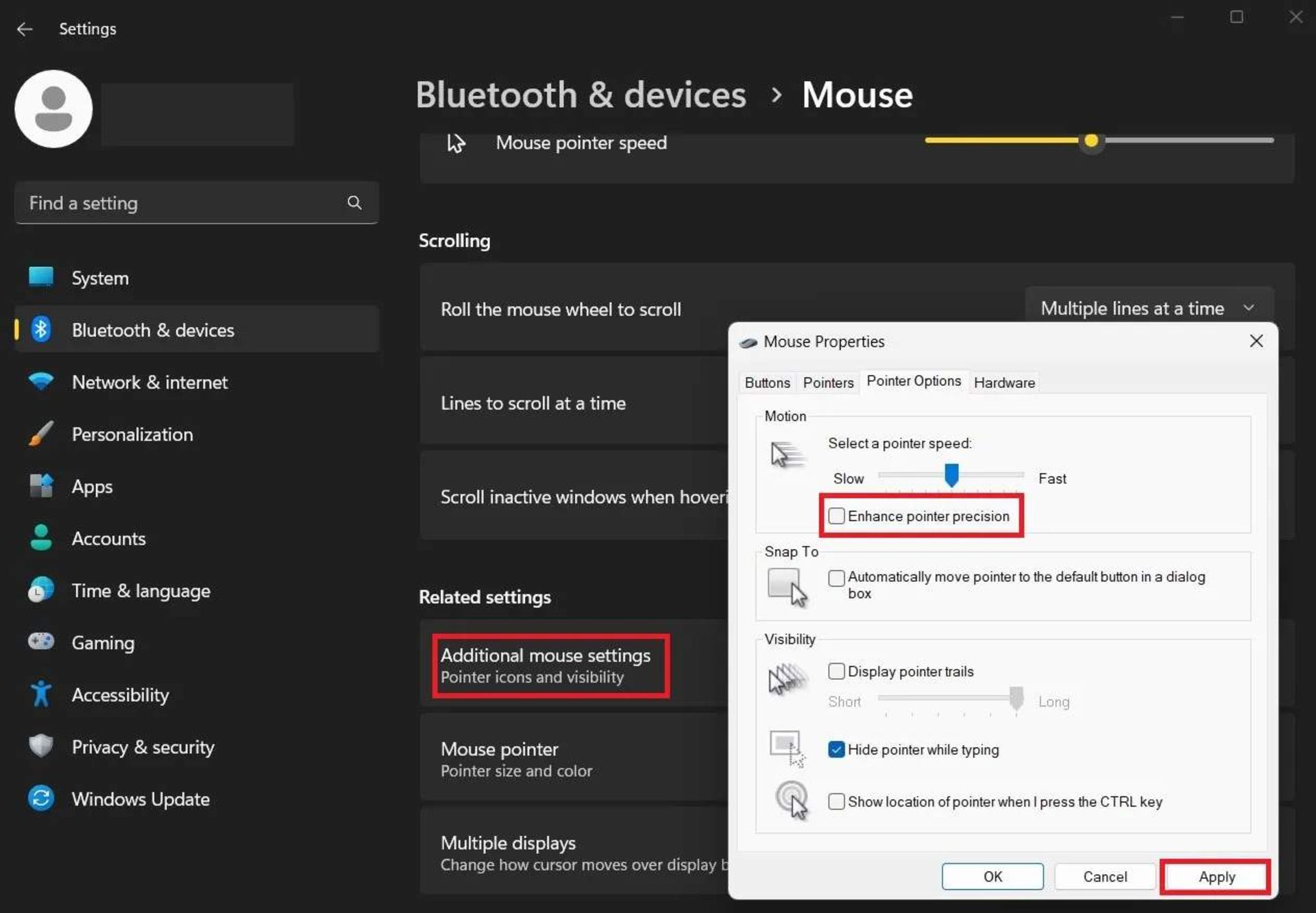
To reduce latency and increase mouse precision, go to Settings > Devices > Mouse > Additional mouse options and disable the “Enhance pointer precision” option.
✔️ Update your graphics drivers:
Graphics drivers should always be up to date for optimal performance. You can go to the website of your graphics card manufacturer (NVIDIA, AMD or Intel) and download and install the latest version of drivers.
✔️ Windows Update:
Make sure your Windows 11 is up to date. Go to Settings > Update & Security > Windows Update and check if a new update is available.
✔️ Use of SSD:
Using an SSD instead of an HDD can improve game load times and overall system performance. This is especially effective with DirectStorage support in Windows 11.
✔️ DirectX 12 installation:
DirectX 12 offers additional graphics optimizations that can improve the performance of games. Ensure that the latest version of DirectX 12 is installed on your system.
✔️ Disable Memory Integrity:
This feature can affect the performance of games. To disable it, go to Settings > Update & Security > Windows Security > Device Security > Core isolation details and disable Memory Integrity.
✔️ Disable Virtualization:
Disabling Virtualization can help improve the performance of some games. To do this, go to the BIOS of your system and disable the Virtualization option.
By following these tips, you can significantly improve your performance and gaming experience in Windows 11. These settings and optimizations make the games run more smoothly, the loading time decreases and the graphics of the games are displayed in the best possible way.