
How to apply Local Group Policies to specific users in Windows 11 and Windows 10
April 21, 2025
How to find out if your computer's CPU supports Windows 11
April 29, 2025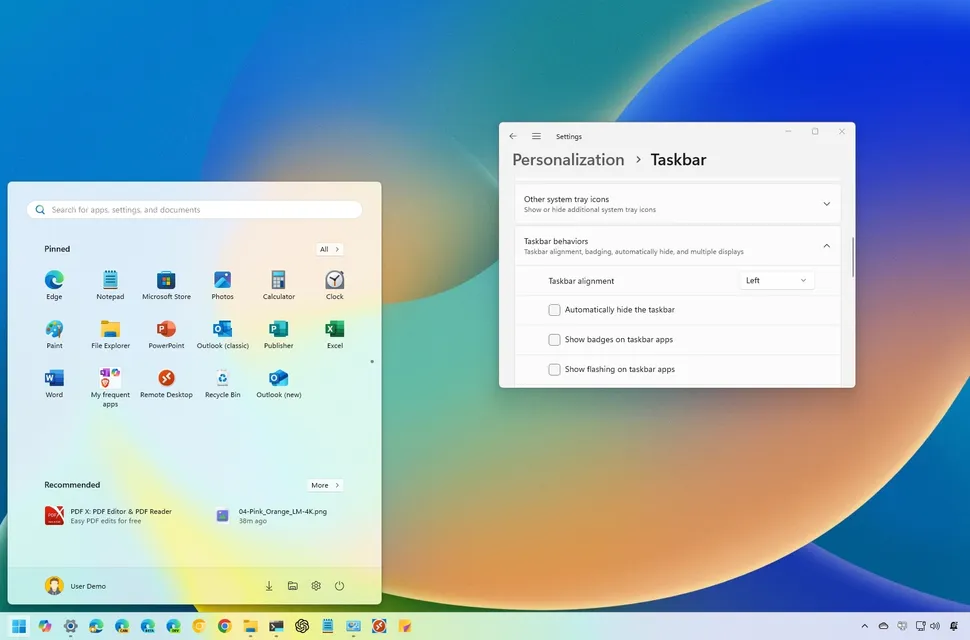
If you don't see the Start menu button Windows 11 If you're unhappy with the taskbar being moved to the center, you're in luck—you can move the Start menu and other app icons back to the left corner with a few simple steps. And while the vertical taskbar is no longer available, you can customize the taskbar in other ways, like automatically hiding it and changing the icons that are visible. This article will teach you how to move the Windows 11 Start menu back to its classic position on the left side of the screen and how to customize the taskbar to your liking.
Return the start button to the left
Return the start button to the left

Right-click on an empty area of the taskbar. Right-clicking on either side of the icons on the taskbar will display a small menu with one option.

Click on “Taskbar Settings.” This menu option appears just above the area you right-clicked. You’ll now see several options for customizing your taskbar.

Click on “Taskbar Behaviors.” This is the last option.

Select the “Left” option from the “Taskbar Settings” menu. This option is in the drop-down menu in the upper-right corner of the “Taskbar Behaviors” section. The Start menu icon and all pinned icons will automatically move to the left side of the taskbar.
Customize the Windows 11 taskbar
Customize the Windows 11 taskbar

Pin an app to the taskbar. While you can't configure the Windows 11 taskbar and Start menu exactly like Windows 10, there are still plenty of customization options. One such option is to pin your favorite app icons to the taskbar. Here's how to do it:
- Open the app you want to pin to the taskbar by clicking its icon in the Start menu.
- When the app is open, its icon appears in the taskbar.
- Right-click the application icon on the taskbar and select Pin to taskbar.
- To remove an icon from the taskbar, right-click on its icon and select Unpin from taskbar.
- There is no limit to the number of apps you can pin to the taskbar.
Right-click on an empty area of the taskbar. Right-clicking on any empty area of the taskbar will display the "Taskbar Settings" option.
Click on the “Taskbar Settings” option. This option is located just above your mouse pointer.

Turn taskbar icons on and off. By default, Windows 11 displays icons for search, task view, widgets, and Microsoft Teams chat on the taskbar. To remove any of these icons from the taskbar, simply click the corresponding switch to turn it off (gray).

Choose which icons appear in the corner of the taskbar. Formerly known as the “system tray,” this is where you’ll find the clock, date, and notifications. You can control which icons are always displayed in this area and which ones are automatically hidden.
- Click the menu of icons in the corner of the taskbar.
- If you want an icon to always be visible in the corner of the taskbar, toggle its switch to the on position.
- To hide an item from the corner of the taskbar, toggle its switch to the off position.
- Click the Add icons menu in the corner of the taskbar.
- Choose which icons are always visible in the corner of the taskbar and which ones appear in the shortcut menu. To access the icons in the shortcut menu, simply click the up arrow to the left of the clock on the taskbar.
Click the Taskbar Behaviors menu. This menu is located at the bottom of the window. Here you can control how the taskbar behaves.

Choose whether to automatically hide the taskbar. If you don't want the taskbar and Start menu to always appear at the bottom of the screen, check the box next to "Auto-hide the taskbar" to hide it from the screen.
You can still make the taskbar reappear by hovering your mouse pointer over the bottom of the screen.
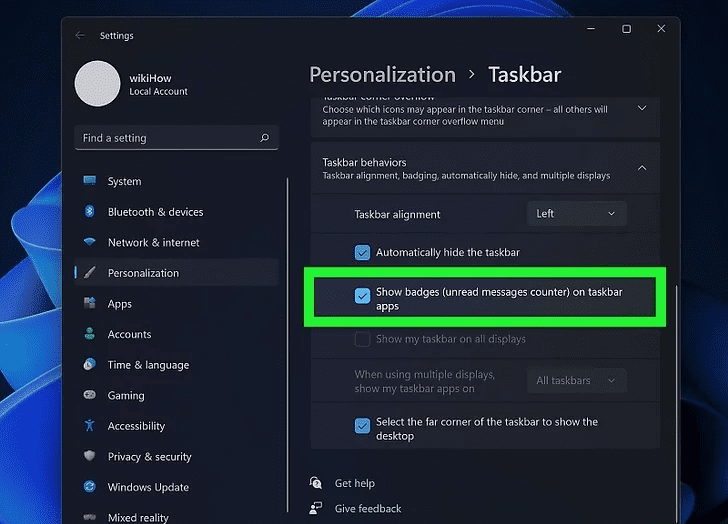
Show unread message counters (indicators) on icons. If you want to see a small indicator that shows the number of unread messages or notifications for that app, check the box next to “Show indicators.”
Another way to optimize performance in Windows 11 is to use the Snap Layouts feature, which allows users to easily arrange windows on the screen in an orderly manner. This feature allows you to view multiple applications on the screen at the same time and make the most of the screen space. This is especially useful for users who are working with multiple applications or projects, helping them stay focused and on task.
Using widgets can also help users keep news, calendars, and other important information easily accessible. This feature helps further personalize the workspace and allows users to quickly access the information they need at a glance. By taking advantage of these features and tools, users can optimize their Windows 11 user experience and increase their productivity.
Finally, adjust the position of the Start menu on the taskbar. Windows 11 It is a simple process that allows users to customize their experience according to personal preference. These settings enhance usability and accessibility, whether for the left-aligned or centered Start menu. By following the steps mentioned, users can easily navigate their taskbar layout, which ultimately results in a more efficient and convenient computing environment. The adoption of such customization options demonstrates Windows 11’s commitment to user-centered design and ensures that everyone can optimize their workflow according to their needs.