
How to move the Start menu to the left or center on the Windows 11 taskbar
April 26, 2025
6 Proven Ways to Fix Windows 11/10 Not Shutting Down
April 29, 2025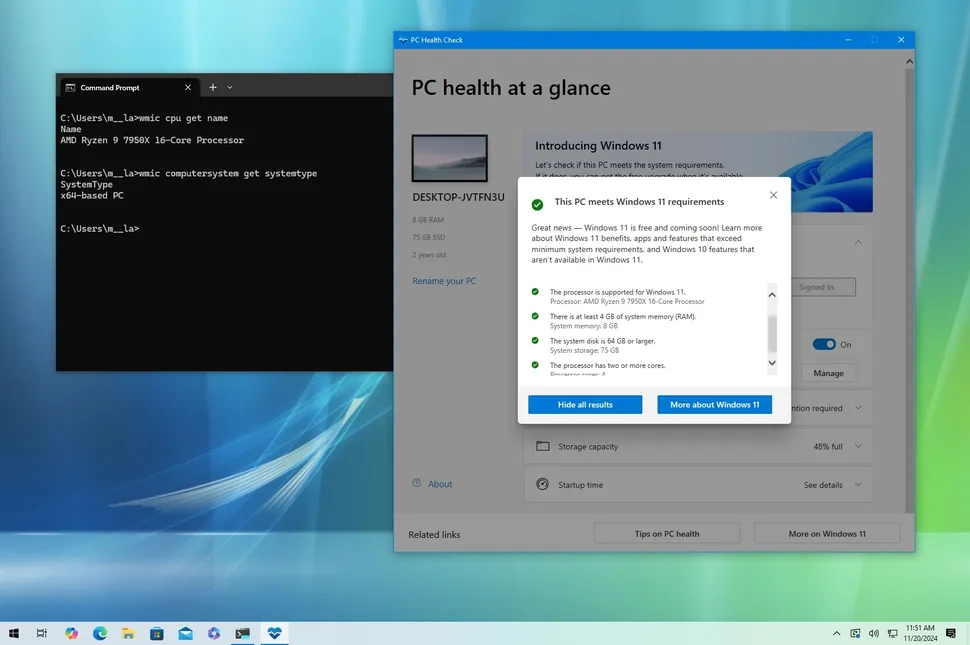
Windows 11 It doesn't officially support all available processors. Here's how to check if your processor is supported.
Although Microsoft is offering Windows 11 as a free update for devices that already have it, Windows 10 are offering, it doesn't mean your hardware is necessarily compatible. Your device will need a TPM 2.0 chip in addition to a supported processor.
According to the minimum system requirements, Windows 11 is only supported on 64-bit (x64) processors and only on some Intel, AMD, and Qualcomm chips, which leaves many older computers out of the upgrade path. For example, for Intel processors, the operating system only supports 8th generation and newer, and some Celeron, Atom, Pentium, and Xeon chips. On the other hand, for AMD processors, Windows 11 supports the 3rd generation Ryzen and newer, including some 2nd generation Ryzen 7 processors and some Athlon and EPYC models.
If you're planning to upgrade to Windows 11 but aren't sure if your processor is supported, there are several ways to check in Windows 10, including using the Settings app, the Command Prompt, or the PC Health Check tool. In this tutorial, we'll walk you through simple steps to confirm whether your computer's processor supports Windows 11.
View CPU properties in BIOS
View CPU properties in BIOS
To access the processor features, users can go to the system BIOS settings. This section provides detailed information such as the processor type, clock speed, number of cores and threads, as well as special features such as virtualization and support for new technologies such as Intel VT-x or AMD-V. By viewing this information, users will be able to get a better understanding of their hardware capabilities and check whether their processor is capable of supporting the requirements of Windows 11.
Additionally, checking the CPU specifications in the BIOS can help users identify and apply system optimization settings. Users can achieve better performance if they pay attention to settings such as increasing the frequency or supporting power modes. For this reason, knowing the processor specifications and capabilities in the BIOS is important not only to ensure compatibility with Windows 11, but can also help improve overall system performance.
Compare with the list of supported processors
Compare with the list of supported processors
Checking your processor model against Microsoft's official list of supported processors for Windows 11 is an important step in assessing system compatibility. This list contains the exact specifications of processors that Microsoft has confirmed to run Windows 11 optimally. By keeping track of this information, users can easily find out if their processor meets the hardware requirements of the new operating system. If your processor is not on this list, you may need to upgrade your hardware or purchase a new system.
On the other hand, this review can provide an opportunity to further understand and optimize your system. Each processor on this list is not only compatible with the latest software features, but also designed to provide the best performance in the new Windows environment. In this way, users can enjoy better user experiences and take advantage of exclusive benefits of new technologies by choosing verified processors.
Check for available software updates
Check for available software updates
Checking for available software updates is an important aspect to consider before upgrading to Windows 11. Updates can include new drivers, security improvements, and additional features that optimize the user experience. Since Windows 11 requires some major changes to software and drivers, ensuring that these are up-to-date can lead to better alignment of the system with the new requirements and smoother performance.
In particular, users should check for available updates from hardware manufacturer websites, especially for graphics cards, motherboards, and other major system components. If necessary updates are not available, they may encounter problems such as malfunctions or lack of access to new features. Therefore, regularly checking for and installing software updates helps users benefit from the latest features and security improvements and keep their system running at its best.
How to check CPU compatibility using settings
How to check CPU compatibility using settings
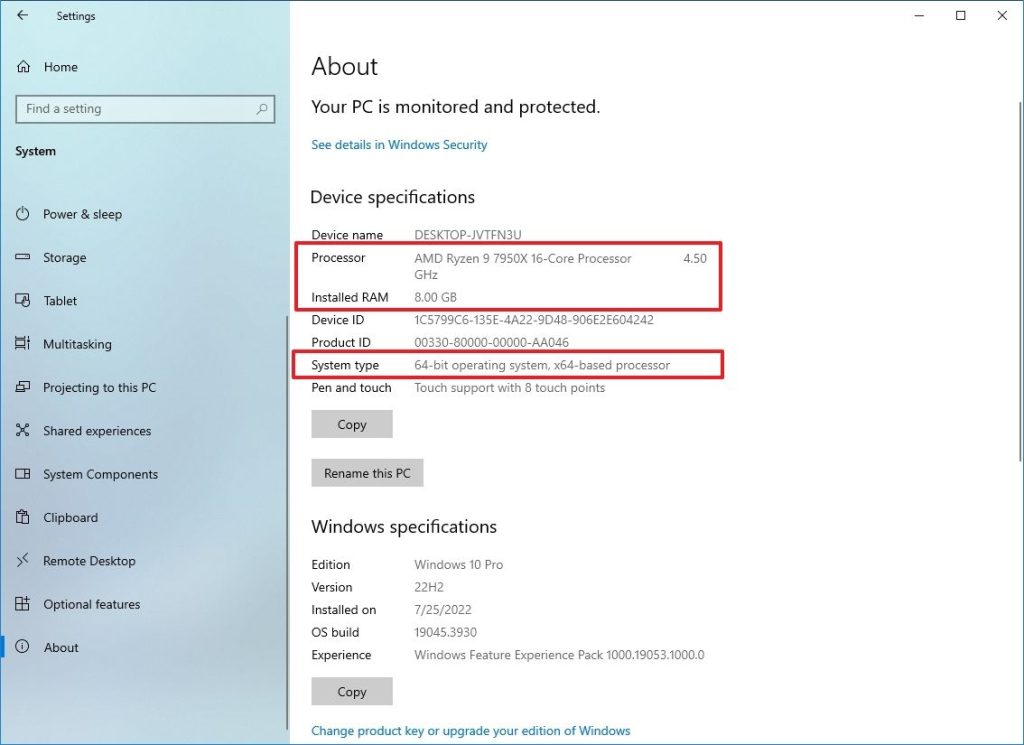
- Verify that the System type is "64-bit operating system, x64-based processor" Displays.
- If the processor Intel If you have, check this Microsoft support page to see if your processor is on the compatibility list for running Windows 11 Is it located or not?
- If the processor AMD If you have one, check this Microsoft support page to make sure your processor is on the Windows 11 compatibility list.
After completing these steps, you will know if your processor is compatible with Windows 11. You can also use these steps to check the full technical specifications of your device.
How to check CPU compatibility using commands
How to check CPU compatibility using commands
Start menu Open.
Command Prompt Search for, click on the top result Right click and the option Run as administrator select
Enter the following command to view the processor model and specifications: Enter Press:
wmic cpu get name
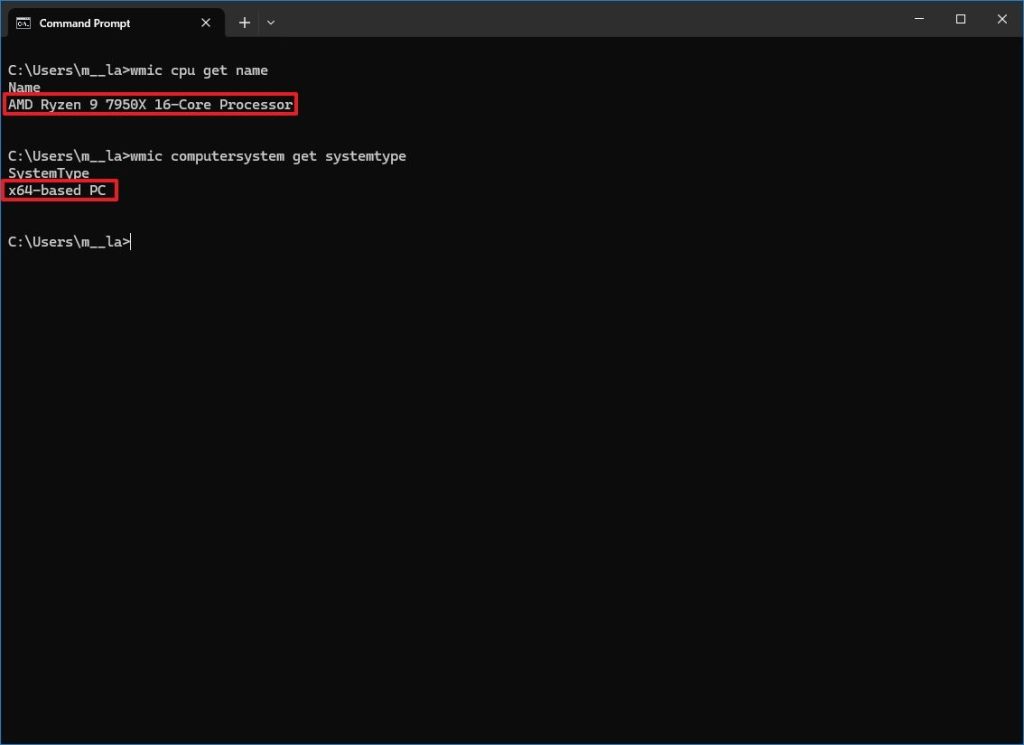
Enter the following command to check if the system is 64-bit and Enter Press:
wmic computersystem get systemtype
If the processor Intel You have, to Microsoft support page See if your processor is on the compatibility list.
If the processor AMD You have, to Microsoft support page See to check if your processor is supported.
After completing these steps, you will find out whether your processor will prevent you from upgrading to a newer version of Windows.
How to check processor compatibility using PC Health Check
How to check processor compatibility using PC Health Check
You can also use the app PC Health Check Use it to check your processor's compatibility with Windows 11. The only catch is that this program only shows whether your hardware supports the new operating system, but it doesn't provide any details about the processor.
To use the app PC Health Check And to confirm that the processor is compatible, follow these steps:
Start Open.
- Note: This program is usually pre-installed on the system, but if it's not there, you can download it from the Microsoft support page.
Phrase PC Health Check Search for and click on the first result to open the app.
Click on the button Check now Click.
Click on the button See all results Click to display the final report.
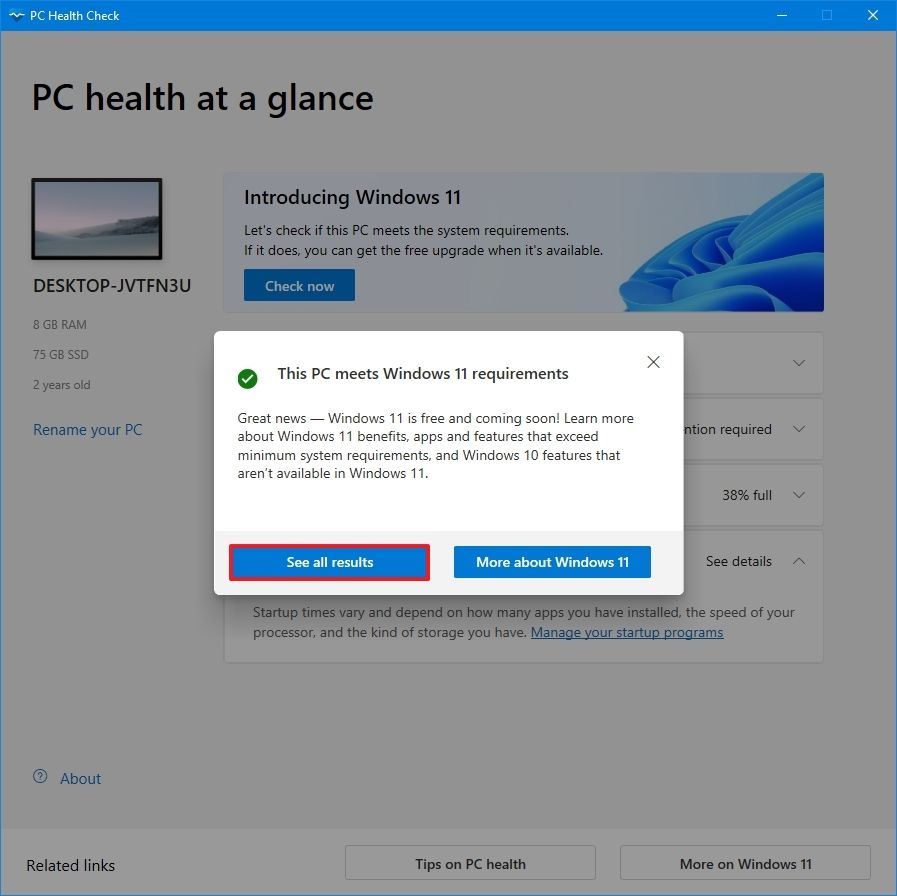
Once the steps are complete, the program determines whether the processor and other components, such as memory and storage, are compatible with Windows 11.
- Important: If you plan to upgrade to 24H2, your processor must support “SSE4.2” on Intel processors or “SSE4A” on AMD processors (which includes the POPCNT instruction).
- Although these methods don't directly indicate whether your processor supports these instructions, most chips manufactured after 2011 do. 2008 have been released, have these features. To verify your device's compatibility, you can List of supported processors on Microsoft support pages Check, as explained in the steps above.
To check if your computer's processor is Windows 11 supports, you should check the following: Processor generation: Windows 11 only supports 64-bit processors from Intel 8th generation and above, Ryzen 2000 and above from AMD, and some Qualcomm Snapdragon models. Using Windows Settings: Check your processor specifications in the About section of Settings. Command Prompt: Check your processor model and system type (64-bit) with specific commands. PC Health Check app: Use this app to check the compatibility of your processor and other hardware with Windows 11. You should also make sure that your system supports TPM 2.0 and Secure Boot.