
20 Essential Commands Every User Should Know in Command Prompt for Windows 11
July 18, 2025
Cracked Software: A Shallow Benefit, a Deep Loss – Why Legal Solutions Are More Future-Proof
July 25, 2025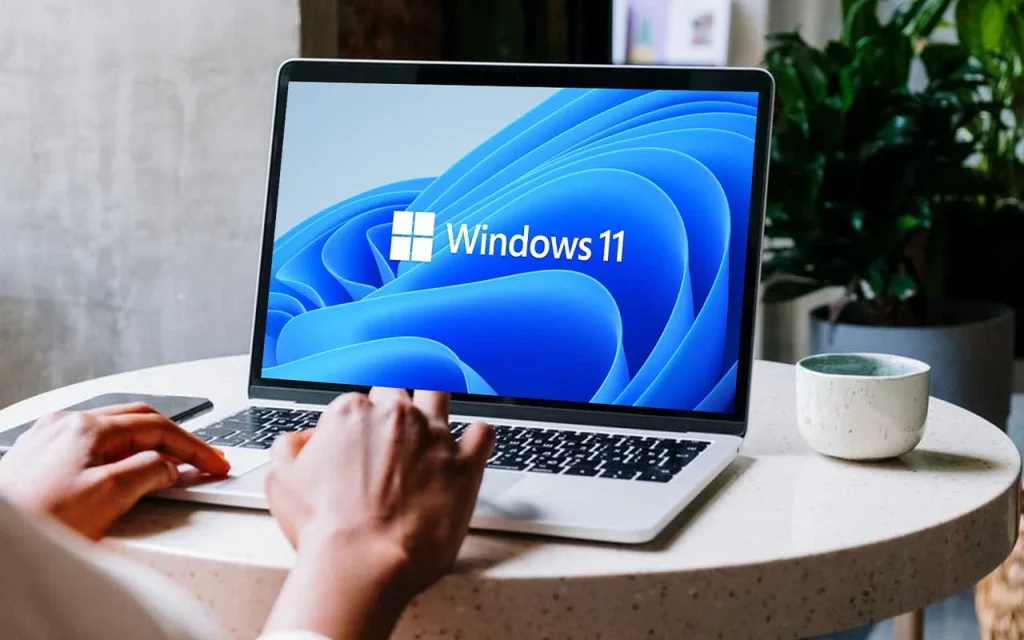
If you need to set up a kiosk device for your organization, event, or home, in this guide I'll show you how. Windows 11 Do this. Kiosk mode in Windows 11 is a legacy feature that turns a regular device into a special-purpose machine that runs just one app. It's typically used to set up a computer as a kiosk for guests to access the internet, fill out forms, or display content like product demos or commercials.
Regardless of the scenario, kiosk mode automatically logs the user in and runs an application in full-screen mode, using a limited user account. This ensures that no one can access the desktop, change settings, or switch to another application.
In this step-by-step guide, I'll show you how to enable, configure, and disable kiosk mode on your device.
How to enable kiosk mode in Windows 11
How to enable kiosk mode in Windows 11
To enable kiosk mode in Windows 11, follow these steps:

Click the “Get Started” button in the “Set Up a Kiosk” section.

Enter a name to create the kiosk profile. For example, office_kiosk.

Click the “Next” button.
Select the app you want to load in kiosk mode.

Click the “Next” button.
Choose how the program will run (if needed).
Note: This setting will vary depending on the program. In this case, I'm selecting "As a public browser" because I'm setting up a computer that will be used for browsing the internet.

Click the “Next” button.
Confirm the website you want to load with the Microsoft Edge browser in kiosk mode.

Click the “Next” button.
Click the “Close” button.
After completing the steps, log out of your main account and log in with the kiosk account to load the app.
If you want to log out of the session, shut down or restart the device, or sign in with a different account, you need to use the “Ctrl + Alt + Del” key combination to see the logout options.
How to customize kiosk mode in Windows 11
How to customize kiosk mode in Windows 11
in Windows 11You can change the current configuration settings of the kiosk or application according to your needs.

Click on the “Kiosk (Active)” setting in the “Set up a kiosk” section.


Once the steps are complete, the new settings will be applied the next time the kiosk account is loaded on the computer.
Change kiosk application
To change the application in the current kiosk configuration, follow these steps:
- Log in with the administrator account.
- Open Settings.
- Click on the Accounts section.
- Select the “Other users” page from the right.

Click on the “Kiosk (Enabled)” setting in the “Kiosk Setup” section.

Select the program.
Click the “Change Kiosk Program” button.

Select the new app.

Click on the “Next” button.
Click the “Cancel” button (if necessary).
After completing these steps, the new app will load when you access your Kiosk account.
How to disable kiosk mode in Windows 11
How to disable kiosk mode in Windows 11
To disable Windows 11 kiosk mode, use these steps:
- Log in with the admin account.
- Open Settings.
- Click on the Accounts section.
- Select the “Other users” page on the right.

Click on the “Kiosk (active)” setting in the “Set up a kiosk” section.
Select the desired program.
Click on the “Remove kiosk” button.

Click on the “Remove” button.
After completing the steps, Kiosk mode will be Windows 11 It will be deleted.