

The role of Windows Defender in the security of Microsoft products: A complete guide to protecting Windows systems
February 25, 2025
Can Microsoft convince gamers to upgrade to Windows 11?
March 3, 2025
Do you remember what good old msconfig was like? Yes, you can still use it in Windows 11 Use it and here's how to do it.
In Windows 11 (and 10), MSConfig (which as System configuration (also known as) is a built-in tool designed to help troubleshoot and manage the operating system startup process.
This tool allows you to enable and disable programs, device drivers, and services that run at startup, and change startup parameters, including access to Safe modeThis tool is especially useful for identifying performance issues and software conflicts in the operating system.
System Configuration is nothing new. It's been around since Windows 98, and while it's evolved over the years, the overall experience hasn't changed much. However, some new features have been added and some have been removed, such as the ability to control which programs start at startup.
In this step-by-step guide, we'll walk you through the steps to get started with the tool. System configuration I will explain in Windows 11. However, these instructions also apply to Windows 10.
Open the System Configuration Tool.
Open the System Configuration Tool.
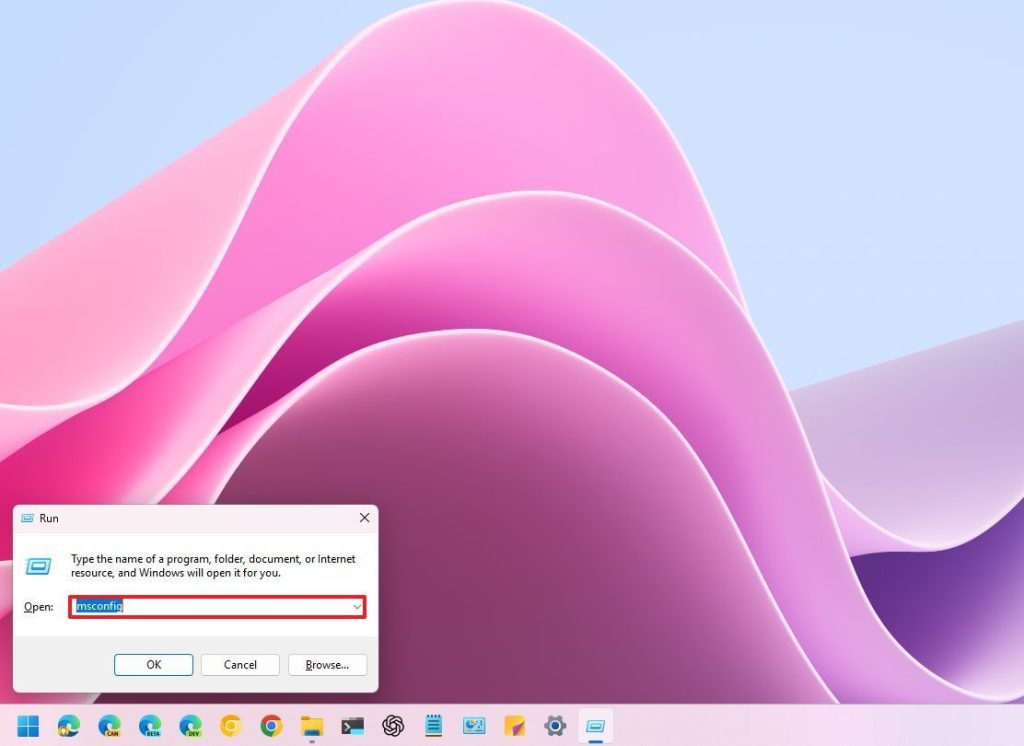
From the Run dialog box:
To open msconfig From Run, follow these steps:
- Use the “Windows + R” key combination to open the Run dialog box.
- Phrase msconfig Type and press Enter (or click the OK button).
From the menu Start:
To open msconfig from the Start menu, follow these steps:
Open the Start menu.
(Option 1) Search for msconfig and click on the top result to open the program.
(Option 2) Search for System Configuration and click on the top result to open the program.

How to work with msconfig in Windows 11?
How to work with msconfig in Windows 11?
After opening the app System configurationYou will see several different tabs, each with a specific function.
General tab:
In the “General” tab, you can change the system startup behavior.
- Normal Startup (default): This is the default mode in which all startup programs and services are loaded.
- Diagnostic Startup: This mode starts the operating system with only essential services and drivers, which helps identify problems or conflicts.
- Selective Startup: In this mode, you can choose which programs and services load at startup. You can disable unnecessary ones to speed up system loading times and resolve conflicts.
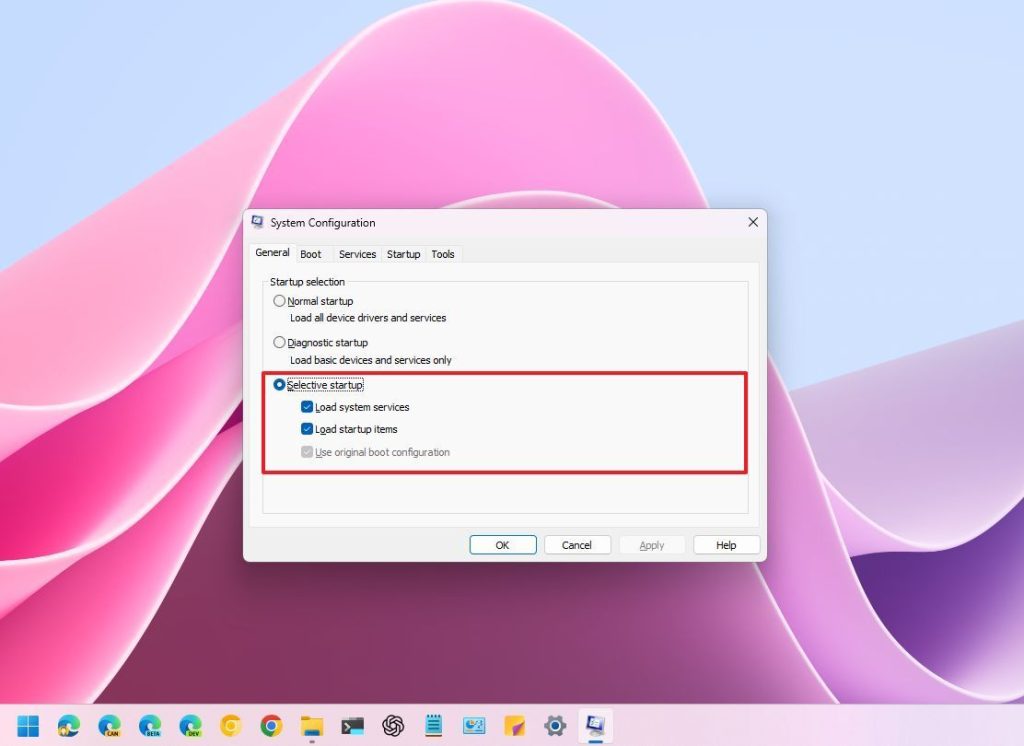
It is worth noting that the “Selective Startup” option has three settings, which are explained below:
✅Loading system services:
Enabled (Checked): This option loads all essential system services that are required for the operating system to function properly.
Disabled (Unchecked): Disables most internal services. While this option can significantly speed up startup, it may cause instability or prevent some applications from functioning properly. Only disable this option if you are sure it will work.
✅Loading startup items:
Enabled (Checked): This option loads programs that are set to launch automatically when you log in. This includes programs that you have installed as well as some system tools.
Disabled (Unchecked): Prevents all startup programs from running. This can speed up loading times, but it means you have to manually launch any programs you need.
The "Use original boot configuration" option tells the operating system to ignore any changes you've made to the boot configuration in System Configuration and instead use the original boot settings that existed when the system was initially installed.
If you enable this option, the “Selective Startup” option will be grayed out and the “Normal startup” option will be automatically enabled.
✅Boot tab:
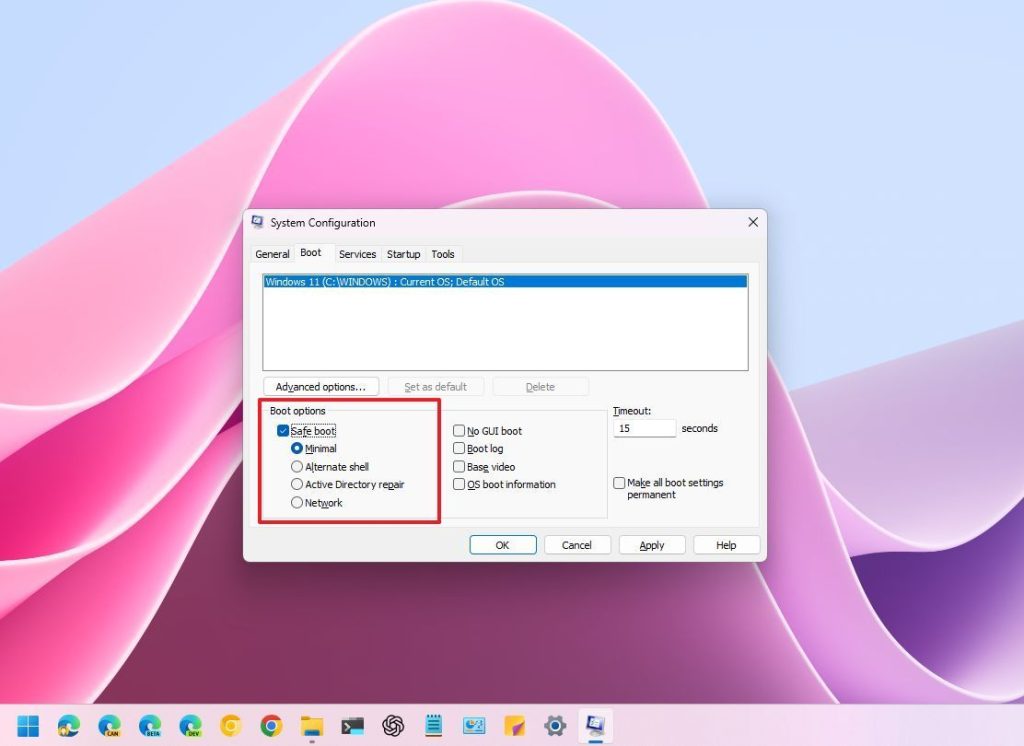
The “Boot” tab allows you to manage boot options such as Safe Boot, boot logging, and setting the default operating system on multiple systems.
At the top of the page, you'll see a list of operating systems installed on your computer. Usually, there's only one operating system installed, but if you have a dual-boot system, other settings will also be displayed here.
If you have different versions of Windows installed on your computer, you can select a specific setting and click the “Set as default” button to install a default that will launch automatically after a timeout period.
You can also select and delete an entry. However, only use this option if, after removing the dual-boot system, you find that the boot menu does not reflect the changes.
Safe Boot: This option allows you to start the computer in Safe Mode, which is a diagnostic mode that uses minimal drivers and services. This option is useful for troubleshooting problems. You can use different options to select Safe Mode:
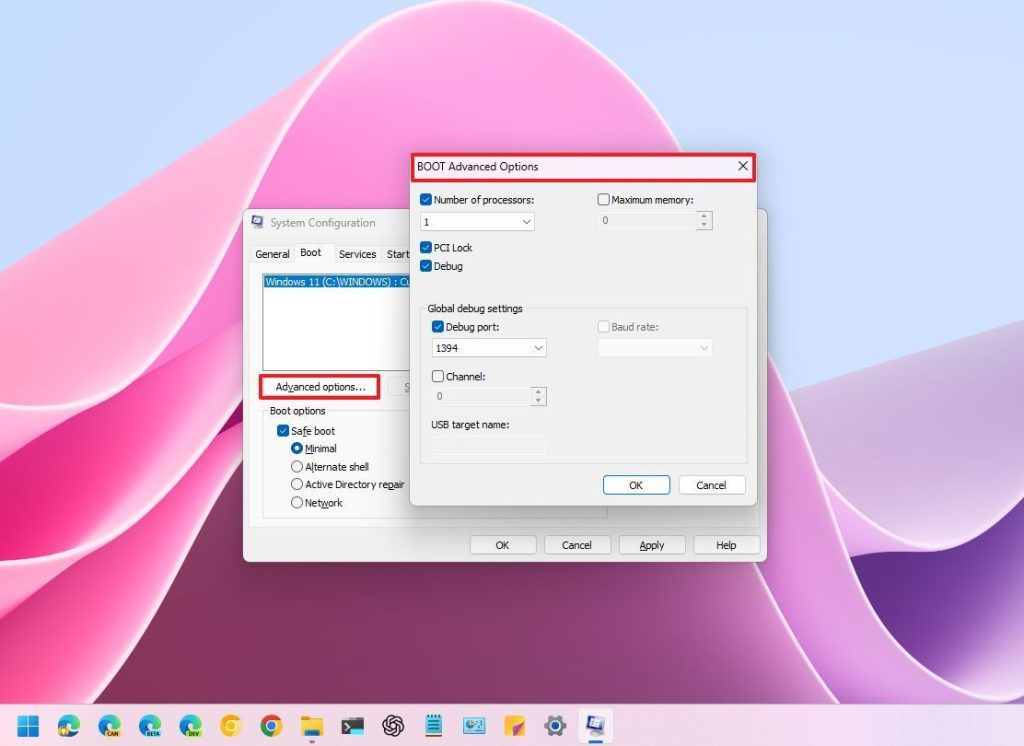
Number of processors
This option allows you to limit the number of processor cores the system uses at startup.
Although Windows 11 still detects all processor cores, it only uses the number of cores you specified for the initial setup phase.
This option is mainly used for debugging and testing, and it is usually best to leave this option unchecked so that the operating system uses all available cores.
Maximum memory
This option limits the amount of memory the operating system uses during startup.
Similar to the processor option, this is mainly for testing or simulating low memory conditions. Unless you have a specific reason to limit memory at startup, it's best to leave this option unchecked.
PCI lock
This option prevents the operating system from reallocating input/output (I/O) and interrupt request (IRQ) resources on the PCI bus during startup.
This setting is very technical and is usually only needed if you are experiencing hardware issues or compatibility issues with older hardware components.
Debug
This option enables kernel mode debugging, which is mainly used by developers to troubleshoot driver issues.
This is usually not something you would need for normal use.
Services tab
Fever “Services” It provides an interface for managing various background services running on the operating system.
List of services
This section displays a list of all the services available on your computer. The list shows the service name, manufacturer details, current status (running or stopped), and whether the service is enabled at startup.
In this section, each service has a checkbox next to it. If it is checked, the service is enabled and will start automatically at boot time. If it is unchecked, the service is disabled and will not start automatically.
Option "Hide all Microsoft services" Hides all services necessary for the operating system to run.
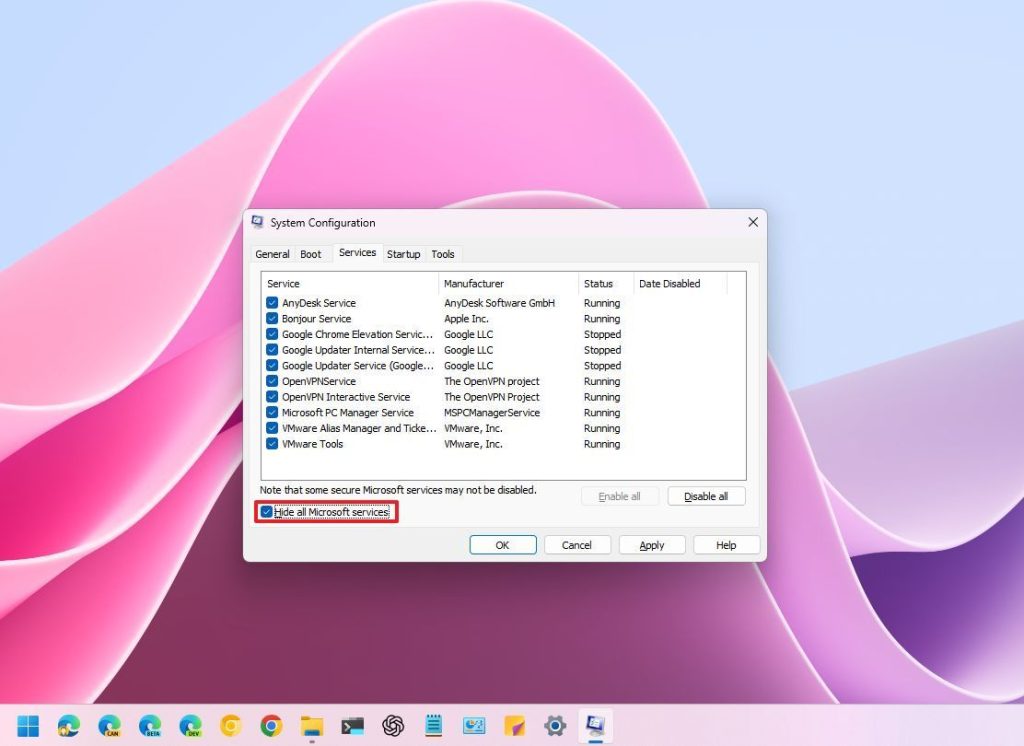
This is a convenient option because it allows you to focus on third-party services (those added by programs you've installed), which are probably safer to disable if you're trying to simplify startup or troubleshoot problems on your computer.
Additionally, this tab includes buttons to enable or disable all services, which can also be useful for troubleshooting various issues.
For example, if you want to perform a clean boot to fix software problems, the option "Hide all Microsoft services" Check and press the button. “Disable all” You click on the tab. Also from the Startup in Task Manager, you disable all programs that are set to run at startup.
Fever “Services” It provides a way to manage background services, but you should use it with caution. Always do your research before disabling any unfamiliar service, and remember that many services require a lot of resources to function properly. They are necessary.
Tools tab
Fever “Tools” Provides quick access to various system tools and diagnostic tools. It is essentially a convenient launcher for these programs that saves you the extra steps of searching for them in the Start menu or searching for them within the application. System Configuration It makes you needless.
From this tab, you can launch the following programs:
- About Windows
- Change UAC settings
- Security and maintenance
- Windows Troubleshooting
- Computer management
- System information
- View events
- Programs
- System Features
- Internet settings
- Internet Protocol Configuration
- Performance Monitor
- Resource Monitor
- Task Manager
- Command line
- Registry Editor
- Remove Assistance
- System recovery
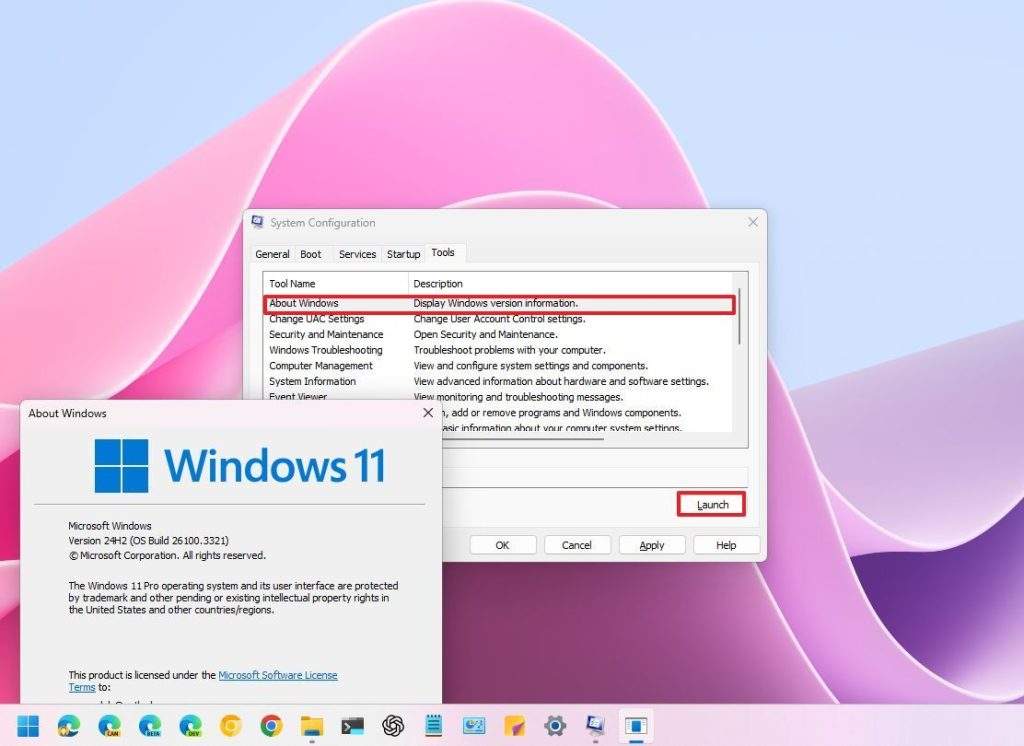
Tools tab
It's mainly a shortcut to existing system tools, but it's rarely used because you can access these from the Start menu, the Settings app, or Windows Tools.
System Configuration Also fever “Startup” includes, but its settings are Task Manager It has been transferred.
Summary
MSConfig or System Configuration is a built-in Windows tool that allows you to manage settings related to system startup and background services. This tool is specifically designed to solve system problems and optimize Windows performance. Using MSConfig, you can manage the programs, drivers, and services that start when Windows starts, for example, disabling programs to speed up startup time or starting the system in Safe Mode to identify software problems. In Windows 11, you can also use this tool to perform various troubleshooting and advanced settings, such as limiting CPU or memory usage at startup. Using MSConfig helps you identify and fix system problems.


