

Microsoft: A journey from a small garage to a global technology giant
August 17, 2024
Artificial intelligence: a new world in information technology
August 21, 2024
In an age where children have unprecedented access to the Internet, parents are faced with the challenge of ensuring their safety and well-being online. With the proliferation of harmful content and potential dangers online, it is more important than ever for parents to actively monitor and control their children's online activities. The Windows operating system offers a range of parental control features that enable parents to protect their children from inappropriate content, limit screen time, and monitor their online behavior. These tools allow parents to set limits for websites, apps and games, as well as track their children's usage and overall digital footprint. By using these parental control features, parents can take an active role in guiding and protecting their children's online experiences. This article examines the various parental control options in Windows and provides guidance on how parents can effectively monitor and manage their children's Internet use. With the right tools and strategies, parents can help their children navigate the online world safely and responsibly.
The state of parenting in the digital age
The state of parenting in the digital age
The fact is that with the advancement of technology and the spread of the use of digital devices, parents have faced new challenges in parenting. These challenges include the following:
Screen time management: With the increasing use of smartphones, tablets, computers and video games, managing the time children spend using the screen has become a challenge. Parents need to set reasonable boundaries for their children's use of digital devices.
Staying safe online: As children enter the digital world, their online security has become very important. Parents need to use strategies to protect their children from online dangers such as accessing inappropriate content, online aggression or malicious ads.
Developing healthy relationships with technology: Technology has become a vital part of everyday life and parents need to teach their children how to use it responsibly and develop healthy relationships with technology. This includes judicious use, effective communication about the risks and benefits of technology, and setting appropriate boundaries for the use of digital devices.
Parenting in the digital age requires a balance between providing valuable opportunities and possibilities that technology provides and responsible management of its use. This reveals the need for new information, skills, and strategies for parents to meet today's parenting challenges.
Understanding parental control
Understanding parental control
Parental controls are very important tools in the digital world that enable parents to monitor and manage their children's online activities. These controls play an important role in maintaining the safety and well-being of children online. Some reasons why parental controls are important in the digital world are:
Protecting children from cyberbullying: With the expansion of the use of social networks and other online platforms, the risks of cyberbullying have also increased. Parental controls can help parents monitor their children's online activities and protect them from these risks.
Inappropriate content management: In the digital world, easy access to inappropriate content can be harmful for children. Parental controls allow parents to filter inappropriate content and limit children's access to it.
Prevention of screen addiction: Spending too much time on the screen can lead to technology addiction and affect children's health and social relationships. By using parental controls, parents can manage the time children spend using digital devices and thus prevent screen addiction.
Parental controls are important tools that help parents maintain the safety and well-being of children in the digital space. These tools make it possible for parents to more effectively provide their role as educators and guides in the digital world and protect their children from its various dangers.
What parental controls does Windows offer?
What parental controls does Windows offer?
Windows provides several parental control tools that allow parents to monitor and manage their children's online activities. Some of these parental controls include:
Activity reports: Windows allows parents to receive reports that include app or game usage, browser history, web searches, and screen time.
Limit screen time: Parents can limit the time their children can use Windows 10 or Xbox One and exercise this control through weekly scheduled programs.
Restrict application and game use: Parents will be able to restrict the use of certain programs and games for children.
Block inappropriate websites and apps: Windows allows parents to enable filtering of inappropriate websites and apps to prevent children from accessing inappropriate content.
Manage child wallets and purchase permissions: Windows allows parents to manage their children's wallets and control permissions for purchases in the Microsoft Store.
Location tracking: Windows allows parents to track their children's location, especially if the child's device is running Android with Microsoft Launcher or a Windows 10 phone.
These controls and features allow parents to effectively monitor their children's online activities and protect them from various Internet dangers.
How to create a child account in Windows 10
How to create a child account in Windows 10
Using these steps, you can easily create a child account in Windows 10. This child account allows parents to have more control over their activities. But one important thing about adding a child to a Windows 10 family account is that the child must have a valid email account, but you can create one for him.
For this reason, before creating a child account, make sure that the child has access to an email account, or if you do not have one, create one. Then using the steps you provided, you can easily create and access the child account in Windows 10.
From the Start menu, click the “Cog” (or device) icon in the bottom left.
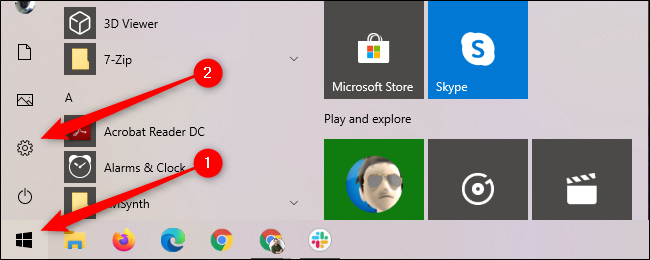
In the settings menu, click on “Accounts”.
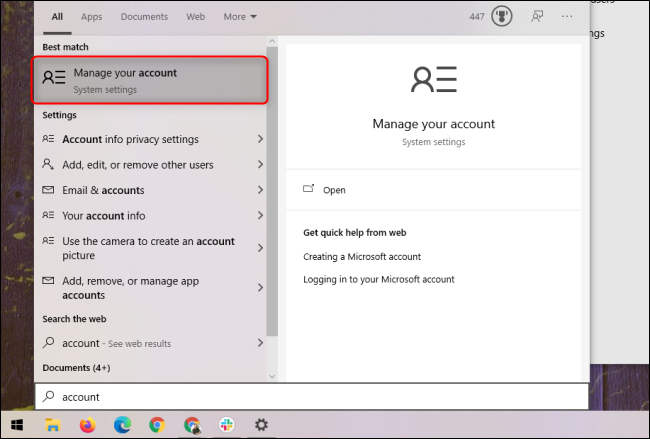
In the Accounts section, select the "Family & other users" section.
In this section, click on "+ Add a family member". This button is usually located at the top of the screen or in the "Other users" section.
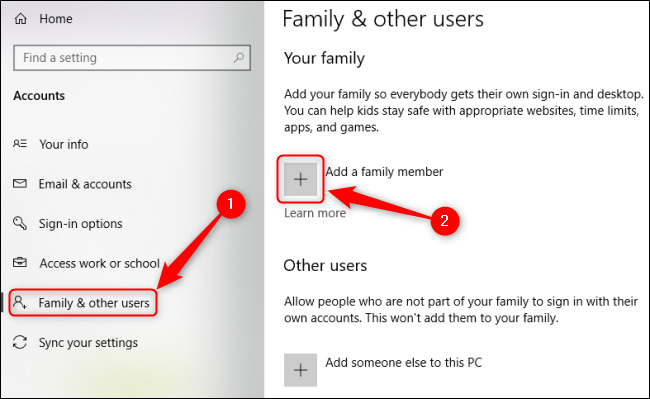
A new window will now open. Here, select the “Add a child” option.
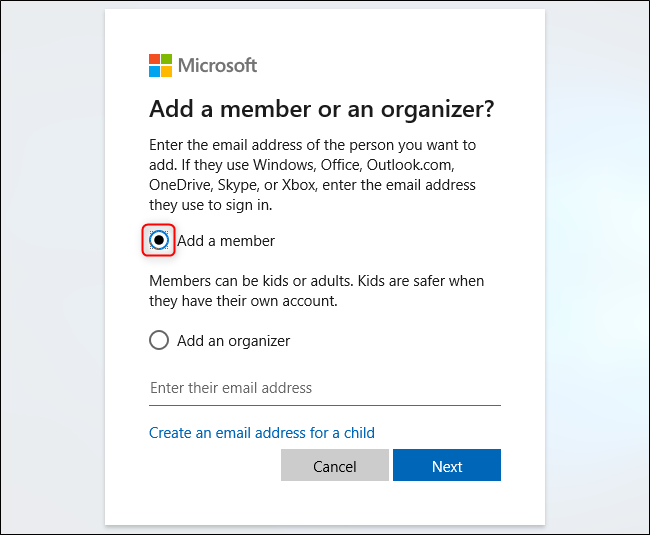
In this step, you need to enter the child's information. If your child has an email address, enter it. Alternatively, you can create an email address for the child.
After entering the required information, click "Next" and complete the process of creating a child account.
By following these steps, a child account will be created in Windows 10 with the restrictions you set. Now you can use parental control tools to monitor your children's activities and protect them online.
How to manage parental controls in Windows 10
How to manage parental controls in Windows 10
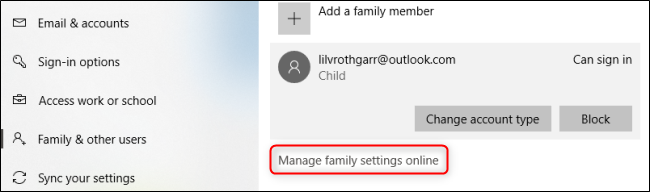
Although you can create your own child account directly in Windows 10, you'll be redirected to Microsoft's family website to manage and monitor the accounts you've created for your family. This website allows you to manage and control user accounts. Also, you can still create new user accounts for new family members through this website. To access this website, use the "Family and other users" window and click on "Manage online family settings".
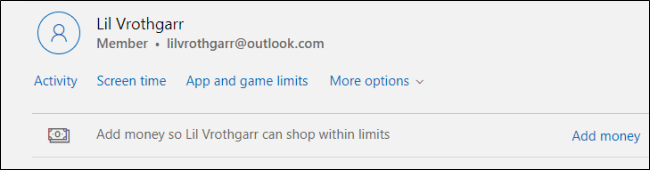
From the Microsoft Family website, you can view any accounts you've added. All parental control settings are disabled by default, so you'll need to enable each feature individually. This will also help you get a better understanding of each feature.
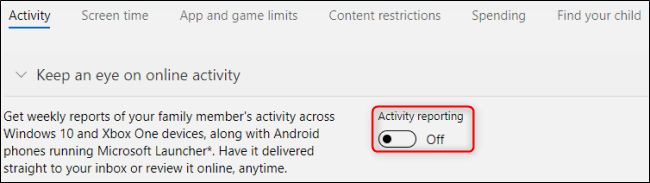
Select "Activity" for each account and enable the "Activity Reporting" button. This allows you to track this account's activity through regular email reports or by returning to this menu at any time.
After enabling activity reporting, scroll down and click Turn on restrictions next to each feature to enable additional restrictions on apps and games, web browsing, and screen time. You can also access, enable and manage any of these features by clicking on the tabs at the top of the page. The Family Safety website provides an explanation of how each of these features works.
Windows parental controls provide empowerment
Windows parental controls provide empowerment
Windows parental controls allow parents to proactively monitor their children's online activities and guide them toward safe and appropriate content. This proactive measure allows you to set limits on websites, apps and screen time, creating a safer digital environment for your children to explore and learn. By effectively using these tools in Windows Settings, you can tailor the online experience to your children's age and maturity level and ensure they are protected from potential online threats and dangers. Empowering parents through the ability to monitor and control their children's digital interactions helps create a safe and responsible online environment for the safe growth and development of young users.
As a result, parental controls in Windows provide parents with an invaluable tool to monitor and manage their children's online activities and ensure a safer and healthier digital experience. By effectively using these features, parents can protect their children from inappropriate content, limit screen time, and promote responsible Internet use. Encouraging open communication and education about online safety along with implementing parental controls can help create a safe and supportive online environment for young users. It's important for parents to stay informed, stay involved, and use the resources available to empower their children to navigate responsibly in the digital world.


