How to find out if your computer's CPU supports Windows 11
April 29, 2025
“Enable Dark Mode in Windows 10: Why is Microsoft's Windows Dark Mode still flawed after a decade?”
May 3, 2025
Is your computer stuck with this error: You clicked “Shut down,” but Windows 10 Refuses to shut down and automatically restarts instead of shutting down straight away? Don't worry if your Windows 10 restarts after you click "Shut down" from the Start menu.
Why won't Windows 11 or Windows 10 shut down?
Why won't Windows 11 or Windows 10 shut down?
If you are wondering why my Windows 10 won't shut down? The following reasons may be the reason why Windows or your computer won't shut down:
- Fast Startup enabled
- Corrupted system files
- Windows 10 update error
- Problems
- Note: Fast Startup, also known as Hybrid Shutdown, is designed to reduce the time it takes to start and shut down your computer. When Fast Startup is enabled, your computer does not completely shut down. As a result, this may cause errors that prevent your computer from shutting down.
How to fix Windows 11/10 not shutting down error
How to fix Windows 11/10 not shutting down error

After logging into Windows, first back up your valuable files. Then you can try the methods below one by one to completely solve the problem of "Windows 10 won't shut down" or "Windows 10 won't shut down".
Method 1. Disable Fast Startup
Disabling the Fast Startup feature is the quickest way to fix the Windows 10 not shutting down problem.
Steps to disable Fast Startup in Windows 10:
Press Windows + X, click “Search,” and type “power.” Then click “Power & sleep settings” from the search results.
Scroll down in the settings window and click on “Additional power settings.”
In the left panel, select “Choose what the power buttons do.”
Click “Change settings that are currently available,” then uncheck “Turn on fast startup (recommended).” Finally, click “Save changes.”
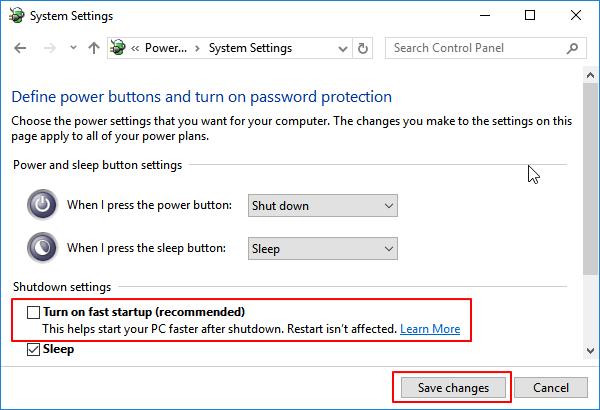
It is normal for your computer to take longer to start and shut down after disabling Fast Startup. If you don't want to solve the Windows not shutting down problem this way, try the other methods listed below.
Method 2. Perform a complete shutdown
The Fast Startup feature doesn't completely shut down your computer to reduce boot time. Rather, it hibernates the kernel session, which is why Windows 10 It cannot be completely turned off.
So, to fix the problem in this case, you have two options to perform a complete shutdown in Windows 10/8/7:
Option 1. Using the Shift key
Open the Start menu and click the Power button.
Click on “Shut down” in the Start menu and press the “Shift” key at the same time.

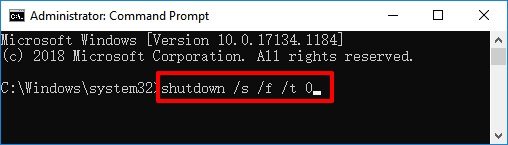
Wait for the process to finish, your computer will automatically shut down.
Method 3. Run the Windows Update Troubleshooter and install the latest version of Windows 10
Some users are unable to shut down Windows 10 while updating. If you are in such a situation, you can use the Windows troubleshooter to fix problems that are preventing Windows from updating.
#1. Fix errors that prevent Windows 10 from shutting down
Right-click on the Windows icon and select “Search,” then enter the word troubleshoot in the search box.
In the search result, select “Troubleshoot.”
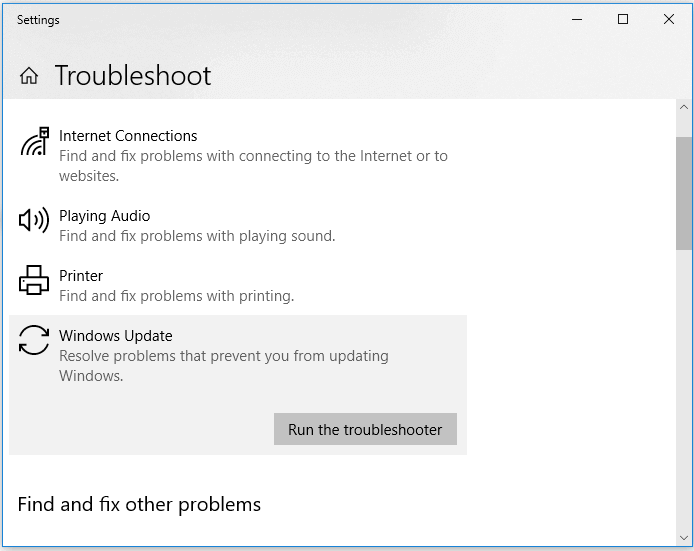
In the “Get up and running” section, click “Windows Update.”
Click “Run the troubleshooter.”
#2. Install the latest version of Windows 11
Installing the latest version of Windows 11 on your computer can fix some unknown errors or bugs that prevent your computer from shutting down. Also read: How to download and install Windows 11.
Method 4. Boot the computer in safe mode and cancel automatic restart
When Windows 10 fails to shut down, the computer automatically restarts every time you click “Shut down.” So, another way to fix this problem is to disable automatic computer restart.
Before the Windows logo appears, continuously press the “F8” key.
When the boot menu appears, release “F8” and select the “Safe Mode” option.
Boot the computer in safe mode and go to search after Windows starts.
Type sysdm.cpl and open it.
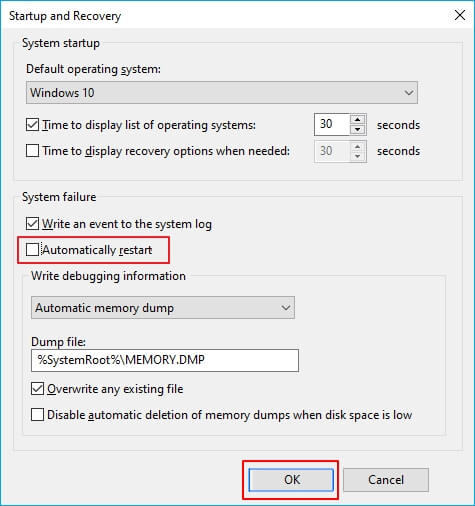
Click “Advanced” and then select “Settings” under the Startup and Recovery section.
Uncheck the “Automatically restart” option.
Click “OK” and restart the computer.
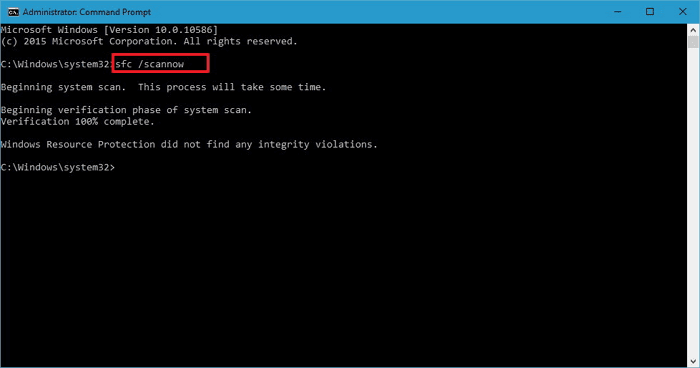
Step 4. After the process is complete, shut down your computer.
Method 6. Change BIOS settings
As mentioned, your Windows 10 may not be able to shut down due to BIOS issues, whether it's incorrect settings or data corruption. You can first reset your BIOS to its default state.
The steps to do this are as follows:
Turn off the computer by pressing the power button.
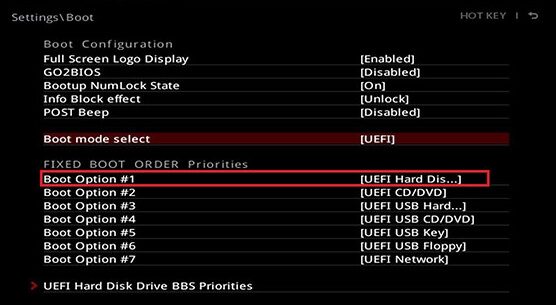
After the computer shuts down, turn it back on and press the F2/F11/Del keys to enter the BIOS.
Go to the Boot section, select “The Default” or “HDD” at the top of the boot order.
Press the F10 key or click “Save” to save the changes and exit the BIOS.
Step 5. Restart and shut down your computer.
After this, your computer will work normally with the correct startup and shutdown status.
If none of the methods mentioned above solve the "Windows 10 cannot shut down" problem, you should consider replacing your computer's motherboard.
Recover lost data when fixing Windows won't shut down problem
Recover lost data when fixing Windows won't shut down problem
Random computer restart or shutdown
Random computer restart or shutdown
"Windows 10 can't shut down" is just one of the shutdown problems Windows 10 Another common problem is Windows randomly restarting or shutting down. If you need it, here are the solutions to this Windows 10 shutdown problem:
Method 1. Change power settings
This is an effective solution to the Windows random restart or shutdown problem. If you are also facing the Windows 10 shutdown problem, don’t hesitate to try it.
- Right-click the Windows icon, select “Search,” and type power. From the search results, select “Power & sleep settings.”
- Go to Settings, scroll down, and click on “Additional power settings.”
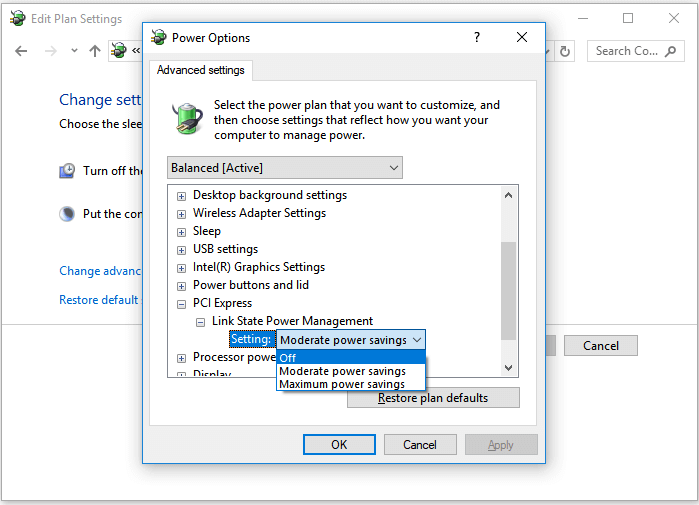
- Click “Change plan settings” > “Change advanced power settings.”
- Expand “PCI Express” and select “Link State Power Management”.
- Set “Settings” to “Off”.
(If you're using a laptop, there are other options. Set them to "Off" as well.)
Method 2. Disabling hybridization
Disabling hybridization using cmd is very easy. Follow the steps below:
- Press Windows + X keys, click “Search” and type cmd in the search box.
- Right-click on “Command Prompt” and select the “Run as administrator” option.
- Enter the command powercfg.exe /hibernate off and press Enter.
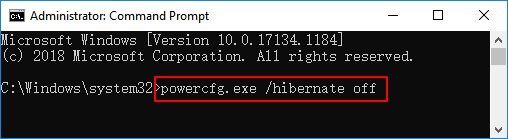
(This command is used to disable hybridization on your computer. If you want to re-enable hybridization, enter the command powercfg.exe /hibernate on.)
Step 4. Once the process is complete, type exit to close the command prompt.
We hope that at least one of the tips above will be useful for you to solve the problem of Windows 10 not shutting down.
Frequently asked questions about the problem of Windows 10 not shutting down
Frequently asked questions about the problem of Windows 10 not shutting down
In addition to the solutions to the Windows won't shut down problem, some users may want to know the reasons for this problem and the factors that slow down the Windows shutdown process. Here are the answers for you. Check it out now and find the answer to your question.
What do I do when Windows won't shut down?
This page answers this question with 6+ solutions to help you fix the Windows won't shut down issue.
You can try these things: 1). Disable Fast Startup; 2). Perform a full shutdown; 3). Run Windows Troubleshooting; 4). Run System File Checker; 5). Boot from Safe Mode; 6). Change BIOS settings.
Return to the main content of this page and you can follow any of the methods to get your computer to shut down normally again.
Why won't my computer or laptop turn off?
The hybrid shutdown feature (also known as fast startup), introduced in Windows 8 and later, is the main reason why Windows doesn't shut down naturally. It's enabled by default on most laptops and some desktops.
Incorrect CMOS and BIOS settings can also cause startup and shutdown problems.
Why does Windows 10 take so long to shut down?
You may encounter the problem of "Windows takes too long to shut down" or "Windows cannot shut down" when you forget to close all running programs and files.
The following issues can also slow down the Windows shutdown process:
1). Software problems – If there are too many programs that need to be closed, it takes time for the computer to close them one by one before shutting down. 2). Process problems – Windows needs to close all running processes before shutting down completely. The more processes your computer has running, the longer the shutdown time will be. 3). Operating system or driver problems – When the Windows operating system or drivers are outdated, the computer will be slow to start up or shut down. 4). Local service problems – When you have too many local services enabled on your computer, it takes time for these services to close before Windows shuts down.